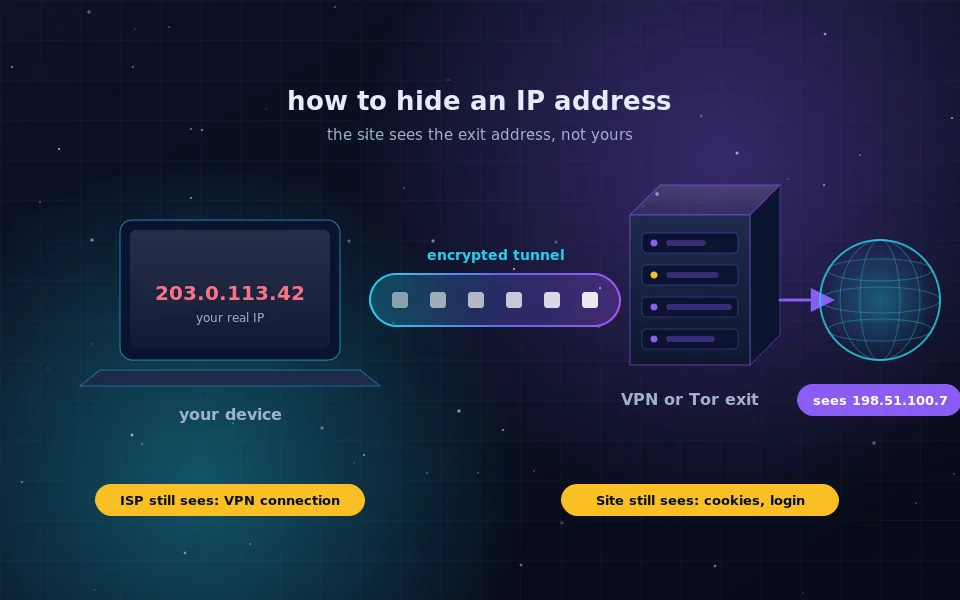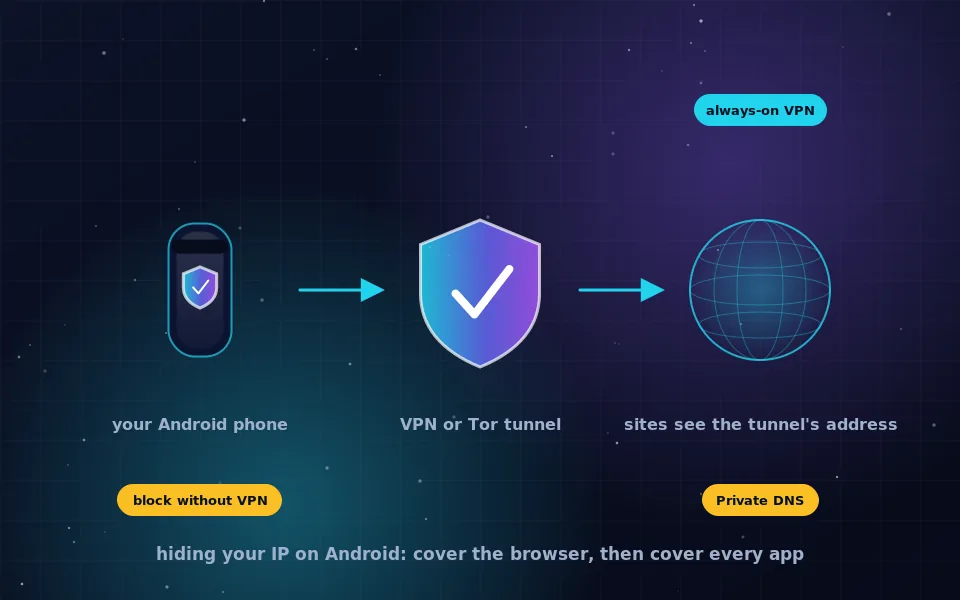
To hide your IP address on an Android phone, install a trusted VPN app and connect, after which every website and app sees the VPN server's address instead of yours; for anonymous browsing specifically, use Tor Browser for Android, which routes that browser through the Tor network. Then enable Android's always-on VPN and block-connections-without-VPN settings so that apps cannot connect around the tunnel, and turn on Private DNS so that your lookups are encrypted too.
Phones are harder than laptops here, because an Android phone is not one program connecting to the internet but dozens, many of them in the background, and because the phone is identified by far more than its address. This guide explains what your IP address reveals, the four ways to hide it on Android and what each covers, the Android settings that stop leaks, how to check that it worked, and the honest limits of hiding an IP address on a device that is otherwise so identifiable.
What your phone's IP address reveals
Every connection your phone makes carries the IP address assigned by your mobile carrier or the Wi-Fi network you are on. To the site or app receiving the connection, that address reveals your carrier or ISP, your approximate location, usually to the city, and a stable identifier for your session that trackers link across services. On a home Wi-Fi network it identifies your household. Hiding it means substituting another address that does not lead back to your connection.
The general guide to hiding your IP address on this site covers the concept; this one is specific to Android.
Four ways to hide your IP address on Android
A VPN app. The most complete option for the whole phone. The VPN creates a tunnel from your phone to the provider's server, and everything you do appears to come from that server. Choose an audited provider with a no-logs policy, as the VPN guides on this site explain, install its app from the official store, and connect. Android's built-in VPN support means any provider's app, or the WireGuard or OpenVPN apps with your own configuration, work the same way. The provider sees your traffic; websites see the provider.
Tor Browser for Android. Free, from the Tor Project, and the right choice for anonymous browsing rather than just a different address. It routes its own traffic through the Tor network, so sites see a Tor exit, and it applies the anti-fingerprinting design of desktop Tor Browser as far as Android allows. It covers only browsing inside that app. The Tor Browser guide on this site has more.
Orbot. Also from the Tor community, Orbot acts as a VPN-style service that routes chosen apps, or the whole phone, through Tor. It is free and makes Tor available to apps other than the browser. Tor is slower than a VPN and some apps behave poorly over it, so it suits specific apps rather than everything.
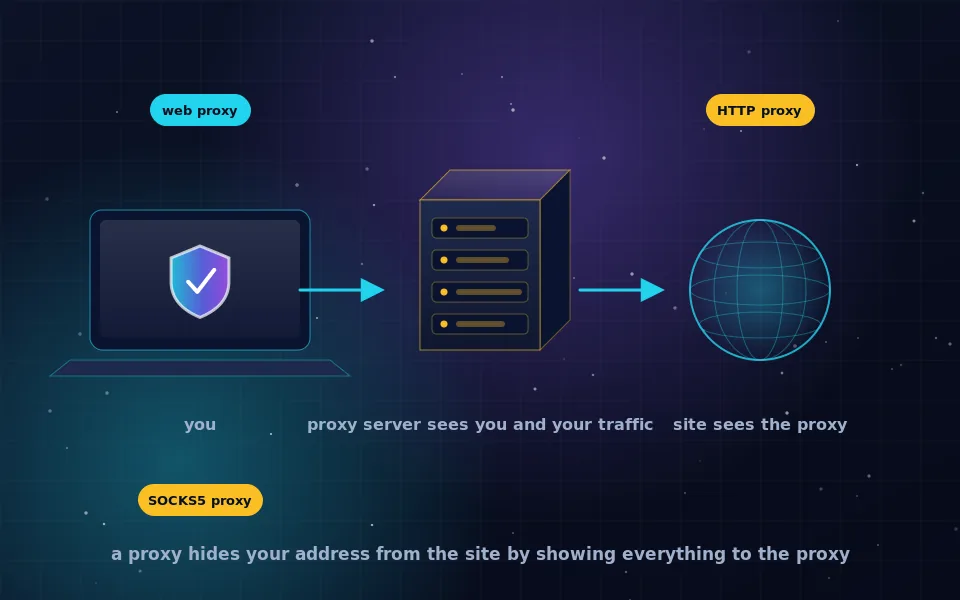
A proxy. Android allows a manual HTTP proxy per Wi-Fi network, and some apps support SOCKS proxies. A proxy hides your address from the sites that traffic reaches but is unencrypted unless the site uses HTTPS, applies only to the network or app configured, and depends entirely on the proxy operator. The proxy guide on this site explains where proxies fit; on a phone they are rarely the best choice.
Android settings that stop leaks
A VPN hides your address only while every connection goes through it. Android has settings to enforce that.
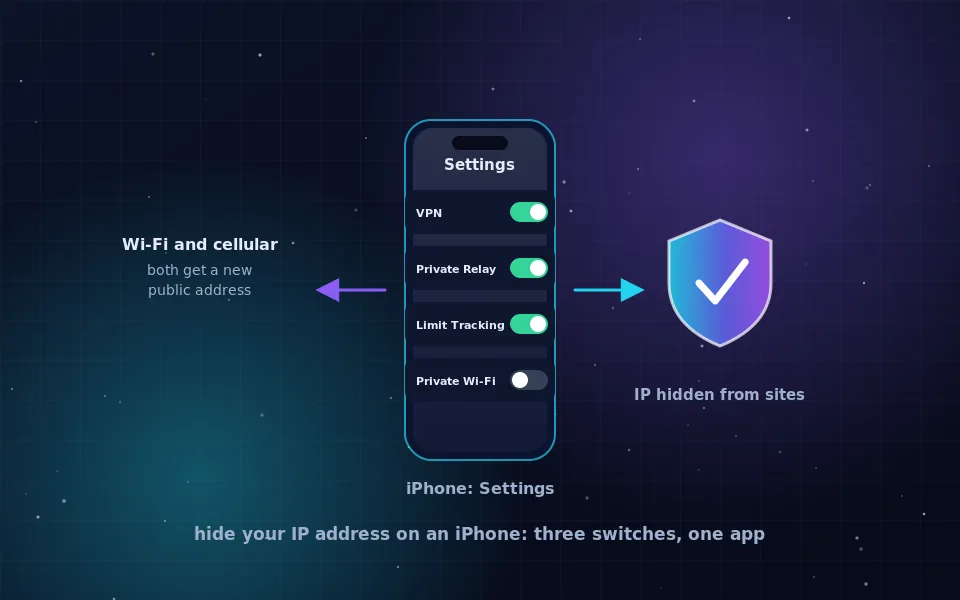
- Open Settings, then Network and internet, then VPN, and tap the settings icon next to your VPN.
- Turn on Always-on VPN, so Android reconnects the VPN automatically and starts it at boot.
- Turn on Block connections without VPN, so that if the VPN drops, nothing connects until it is back. This is Android's kill switch and it is the single most important setting for hiding your IP address reliably.
- In your VPN app, check split tunnelling. If any apps are set to bypass the VPN, they reveal your real address. Bypass only what you deliberately want outside the tunnel.
- Open Settings, then Network and internet, then Private DNS, and set a provider hostname for encrypted DNS. This stops your carrier or Wi-Fi network seeing your lookups and prevents DNS leaks alongside the VPN. Some VPN apps handle DNS themselves; the Private DNS setting is still worth having for when the VPN is off.
- Consider disabling Wi-Fi scanning and Bluetooth scanning under location settings, which report nearby networks and devices to Google for location purposes independent of your IP address.
Checking that it worked
Open a "what is my IP" page in your browser with the VPN or Tor connected and confirm the address and location shown are the server's, not yours. Run a DNS leak test, as the guide on this site describes, to confirm your lookups are not going to your carrier's resolver. Then test an app: many apps show your detected location or region, and it should match the VPN server. Finally, toggle airplane mode on and off with block-without-VPN enabled and confirm that nothing connects until the VPN is back.
Free options and what to avoid
Tor Browser for Android and Orbot are free and trustworthy, developed openly with non-profit funding. Free tiers from audited paid VPN providers, with the same no-logs policy as their paid plans, are acceptable for hiding your address from sites.
Free VPN apps with no paid product behind them are the ones to avoid. Servers cost money, and the money comes from advertising SDKs inside the app, selling browsing data, or renting your phone's connection to others. On Android, where apps can request broad permissions, a free VPN app is in a position to see and monetise a great deal. The free VPN guide on this site explains how to tell the difference before installing.
The limits of hiding an IP address on a phone
Hiding your IP address stops websites and apps from learning your location and network from your connection. It does not make the phone anonymous, and on Android that gap is wide. The phone is identified to your carrier by its SIM and hardware identifiers regardless of any VPN. Your Google account, signed in across the system, identifies you to Google and to apps that use its services. The advertising ID, unless reset and limited in settings, identifies you to advertisers across apps. Apps with location permission report your GPS position, which no IP hiding affects. And a phone's fingerprint, including its model, installed apps and sensors, is as identifying as a browser's.
Hiding your IP address on Android is worth doing and is the first step. For anonymity, the anonymous browsing guide on this site explains how far a phone can go and when to move to a laptop.
What Android's documentation and researchers say
The steps above follow Android's own documentation and the findings of people who study mobile privacy.
Android's documentation describes always-on VPN and block connections without VPN as the mechanisms for ensuring traffic does not bypass the tunnel, and describes Private DNS as encrypting DNS queries without hiding the device's IP address.
The Tor Project describes Tor Browser for Android as providing Tor's network anonymity and much of the desktop browser's fingerprinting protection within the app, and describes Orbot as the way to route other apps through Tor.
Mobile privacy researchers who have analysed free VPN apps on Android have found widespread use of tracking libraries, permission over-reach and, in some cases, traffic manipulation, and consistently recommend audited paid providers or Tor over standalone free apps.
Do it in ten minutes
Install a trusted VPN or Tor Browser for Android, connect, then turn on always-on VPN, block connections without VPN and Private DNS. Check your address on a test page and run a DNS leak test. Your phone's IP address is now hidden from every site and app, which is a real improvement, and the rest of this site explains what to do about everything else a phone reveals.
Frequently asked questions
How do I hide my IP address on my Android phone?
Install a trusted VPN app and connect; websites and apps then see the VPN server's address. For anonymous browsing rather than just a different address, use Tor Browser for Android, which hides your IP address through the Tor network for that browser only. Enable Android's always-on VPN and block-connections-without-VPN options to prevent leaks.
Does a VPN hide my IP address from all apps on Android?
A VPN in normal mode routes all app traffic through the tunnel, so apps see the VPN address. Android allows split tunnelling, where chosen apps bypass the VPN, and some apps or system services may connect before the VPN is up. Enable always-on and block-without-VPN in Android settings to close those gaps.
Does Private DNS hide my IP address?
No. Private DNS encrypts your DNS lookups so your network cannot see which domains you resolve, but your IP address is still visible to every site and app you connect to. It is worth enabling alongside a VPN or Tor, not instead of one.
Can I hide my phone's IP address for free?
Tor Browser for Android is free and hides your IP address for browsing. Orbot, from the same community, can route other apps through Tor for free. Free tiers of audited paid VPN providers are acceptable; standalone free VPN apps often fund themselves with your data and should be avoided.
Does hiding my IP address make my Android phone anonymous?
No. The phone is identified by its SIM, its accounts, its advertising ID and its apps regardless of IP address. Hiding the IP address stops sites and apps learning your location and network. Anonymity on a phone is limited and requires far more, as the anonymity guides explain.
Last reviewed and updated on . Plain text version: /anonymity/hide-ip-address-android.txt.