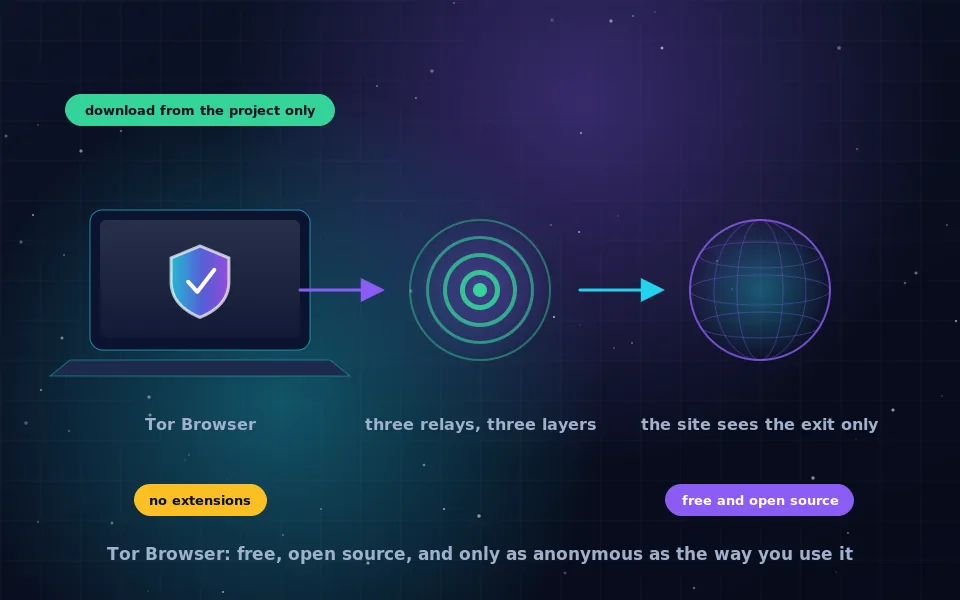
Download Tor Browser for Mac from the Tor Project's website as a disk image and drag it to Applications. On Linux, either download the archive from the same site, verify its signature and run it from your home directory, or use your distribution's Tor Browser Launcher package, which does the download and verification for you. Never install from a third-party site or an unofficial package that repackages the browser itself.
Both systems run Tor Browser well, and both have a couple of platform quirks that trip people up: Gatekeeper prompts and quarantine on macOS, and the choice between the archive and distribution packages on Linux. This guide walks through each platform, explains why signature verification is worth five minutes, covers the first run and the settings to leave alone, and finishes with the update and usage habits that keep Tor doing its job.
Get it from the right place
Tor Browser is an anonymity tool, which makes it a target for fakes. Counterfeit copies have been spread through search advertising and download portals, and a tampered anonymity tool is worse than none.
- Use the Tor Project's website, or the official mirrors it lists, and nothing else.
- If the site is blocked where you are, the project runs an email-based distribution service and offers mirrors; details are on its support pages.
- On Linux, the Tor Browser Launcher package in major distributions is acceptable because it downloads the official build from the project and verifies the signature. Packages that bundle the browser itself are a different matter and are often stale.
- Never accept a Tor Browser installer sent to you by someone else, even someone you trust, because you cannot know where they got it.
Verify the signature
Every Tor Browser download has a matching signature file. Verifying it proves the file was produced by the Tor Browser developers and not altered between them and you. The Tor Project maintains a step-by-step verification page; the outline is the same on both platforms.
- Install GnuPG if it is not already present. It is included on most Linux systems and can be installed on macOS with a package manager or from the GnuPG project.
- Import the Tor Browser Developers signing key using the fetch method described on the Tor Project's verification page, which retrieves the current key directly from the project.
- Download the
.ascsignature file that sits next to your download. - Run
gpg --verifywith the signature file and the downloaded file as arguments. - Read the output. A good signature from the Tor Browser Developers key means the file is authentic. Any warning about a bad signature means stop and download again from the official site.
The whole process takes a few minutes the first time and seconds afterwards. It is the single step that turns "I downloaded it from a site that looked right" into "I have the file the project published".
Install on macOS
Open the downloaded disk image, drag Tor Browser into the Applications folder, and eject the image. On first launch, macOS may show a Gatekeeper prompt because the app was downloaded from the internet; confirm that you want to open it. If macOS reports that it cannot verify the developer, cancel and check that you downloaded from the Tor Project, because the official build is signed and notarised.
Tor Browser on macOS keeps its profile inside the application bundle, so if you move or delete the app, your settings go with it. It updates itself; when it prompts to restart for an update, do so promptly.
If you want Tor Browser to leave no trace on a shared Mac, run it from an external encrypted drive or use a separate macOS user account. For a stronger guarantee of no traces, a live system such as Tails on a USB drive is the better tool and is covered elsewhere on this site.
Install on Linux
You have two good routes.
The archive. Download the Linux tarball for your architecture from the Tor Project, verify it, and extract it somewhere in your home directory. Inside is a start-tor-browser.desktop file; run it or double-click it. Tor Browser runs entirely from that folder, updates itself in place, and needs no root access. Do not extract it to a system directory or run it as root; the browser is designed to run as an ordinary user.
The launcher package. Many distributions ship torbrowser-launcher. Install it with your package manager, run it, and it downloads the current official Tor Browser, verifies the signature against the project's key, and installs it in your home directory. Afterwards, launching it starts Tor Browser directly. This is the most convenient option and keeps verification automatic.
Avoid distribution packages named simply "tor-browser" that contain a repackaged browser, unless your distribution's security team maintains them as promptly as the project's own releases. Also note that the tor package in repositories is the Tor daemon, not the browser; you do not need it to run Tor Browser, which bundles its own.
First run and the settings to leave alone
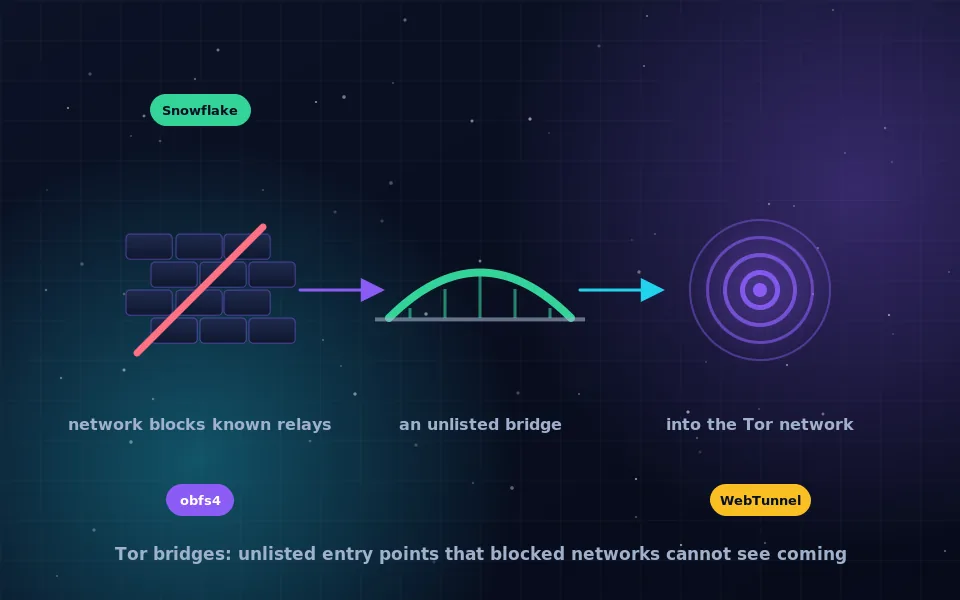
On first launch, Tor Browser asks whether to connect directly or configure a bridge. If your network does not block Tor, choose Connect. If it does, or you would rather your network not see Tor traffic, the bridges guide on this site explains the options built into the connection settings.
Once connected, resist the urge to customise. Tor Browser's protection depends on every user looking alike, so:
- Do not install extensions, including ad blockers and password managers.
- Do not change the window size to fill the screen; letterboxing is intentional.
- Do not change privacy or network settings. The only setting most people should touch is the Security Level, which you can raise to Safer or Safest for sensitive browsing.
- Do not set Tor Browser as the default system browser if you also browse normally, because links opened from other apps will mix identities.
Habits for using Tor Browser on a desktop
The browser hides your network location; these habits protect the rest.
Use a separate everyday browser for logged-in accounts and never sign in to personal accounts in Tor Browser. Do not open downloaded documents while online; they can contact the internet outside Tor. Prefer HTTPS sites and onion services. Do not run torrent clients or other applications through Tor's local proxy expecting them to be anonymous; Tor Browser protects itself, not the rest of the system. When the browser prompts for an update, install it immediately, because browser vulnerabilities are the realistic attack on Tor users.
On Linux specifically, be aware that the desktop environment may keep recent-files lists and thumbnails of downloads. If leaving no trace matters, Tails is the tool designed for that.
What the Tor Project and Linux maintainers recommend
The guidance here follows the project's own instructions and the experience of distribution maintainers.
The Tor Project's installation and verification pages state that users should download only from the project or its mirrors, verify signatures, and run the browser as an unprivileged user without modifying its configuration.
Distribution maintainers who package the Tor Browser Launcher have explained that the launcher exists precisely because repackaging the browser itself leads to stale, insecure versions, and that fetching the official build with verification is the safer design.
Security researchers who study attacks on Tor users consistently identify browser exploits and user behaviour, rather than the routing protocol, as the practical risks, which is why prompt updates and unmodified settings are emphasised over any tweak.
Install it now, the right way
Go to the Tor Project's site, download the build for your Mac or Linux machine, verify the signature, and install it as described above. Open it, click Connect, and browse a few ordinary sites to see how it behaves. From then on, the browser updates itself and your only jobs are to leave it unmodified and to keep your identities separate.
Frequently asked questions
Where do I download Tor Browser for Mac?
From the Tor Project's website only. It provides a disk image for macOS; open it, drag Tor Browser to Applications, and launch it. Do not use third-party download sites, and check the signature if you can.
How do I install Tor Browser on Linux?
Either download the archive from the Tor Project, verify its signature, extract it in your home directory and run the launcher inside, or install the Tor Browser Launcher package from your distribution, which downloads and verifies the official build for you.
Should I install Tor Browser from my Linux distribution's repository?
Use the Tor Browser Launcher package if your distribution offers it; it fetches the official browser and verifies it. Avoid packages that repackage the browser itself, because they are often out of date, and an outdated Tor Browser is a security risk.
Does Tor Browser on Mac need Rosetta or a specific chip?
The Tor Project ships builds for both Intel and Apple silicon Macs, with a universal option on recent versions. Download the one that matches your machine, or the universal build if offered.
How do I verify the Tor Browser download?
Download the signature file alongside the installer, import the Tor Browser Developers signing key using the method described on the Tor Project's site, and run the verification command. If the signature is good, the file is exactly what the project published.
Last reviewed and updated on . Plain text version: /anonymity/tor-browser-linux-mac.txt.