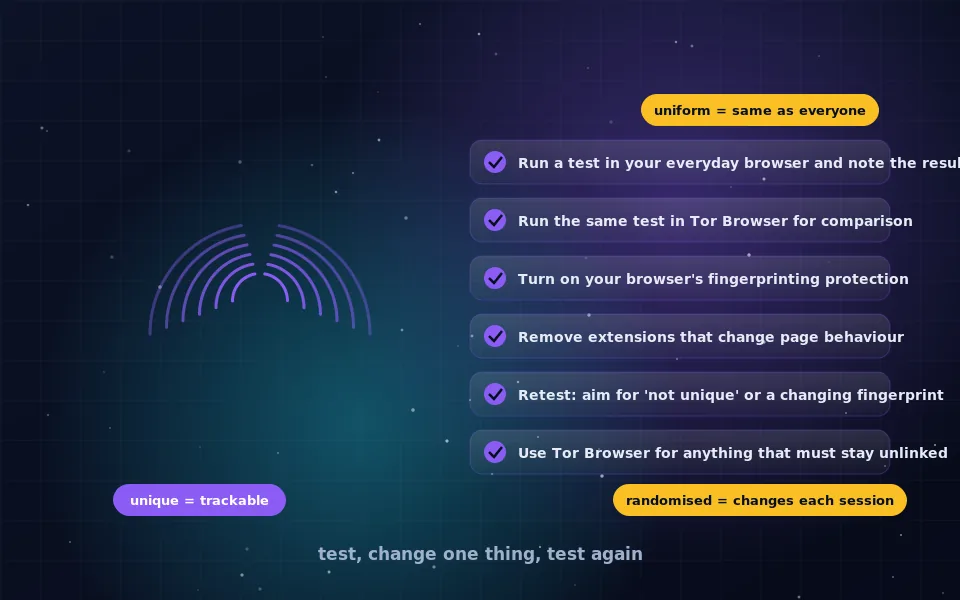
To run a browser fingerprinting test, open a fingerprinting check site run by a privacy organisation or research group in the browser you want to examine; it reads the same attributes a tracker would and reports whether your fingerprint is unique and which attributes make it identifying. To prevent browser fingerprinting, use a browser that either makes you look like everyone else, which is Tor Browser, or randomises the identifying values each session, which Brave does by default and Firefox offers as a setting.
The test is easy. Reading it well and acting on it takes a little understanding, because a "unique" result does not always mean trackable, and a "protected" label does not always mean safe. This guide explains what a fingerprinting check measures, how to interpret the result, how the main browsers compare, the steps that actually reduce your exposure, and the mistakes that make things worse.
Running the test
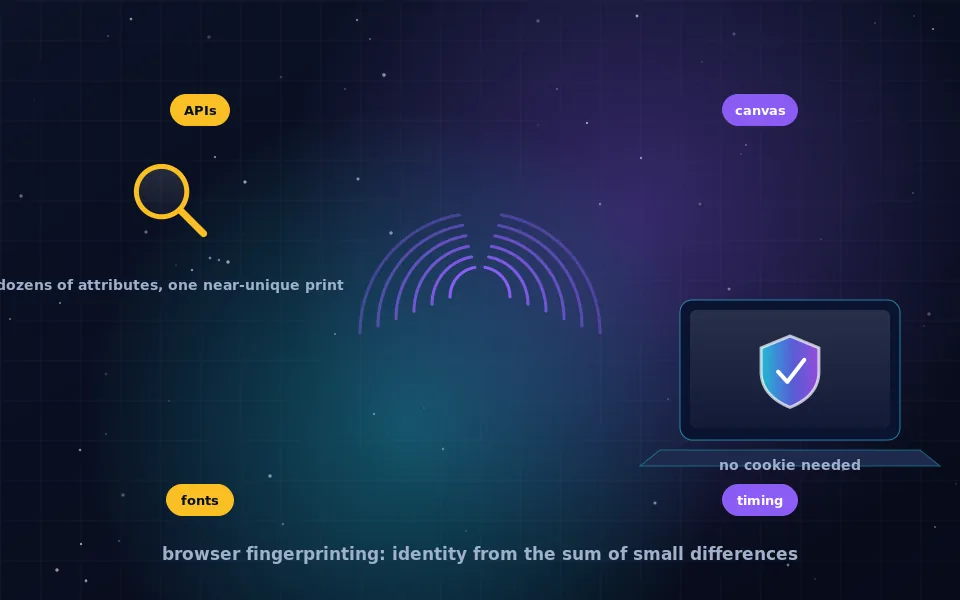
Choose a test site operated by a privacy organisation or an academic project rather than a commercial fingerprinting vendor's demo; the former exist to educate and the latter to sell. Open it in the browser and profile you actually use. Let it run; it will draw hidden canvases, enumerate fonts and read dozens of properties, then present a report.
Run it twice: once in your everyday browser and once in Tor Browser. The contrast is the fastest way to understand what a fingerprint is. Then, as you change settings, run it again after each change, so you can see which change did what.
Reading the result
Tests present two kinds of information.
The uniqueness estimate says whether your combination of attributes has been seen among the site's recent visitors, and often how many bits of identifying information your fingerprint carries. "Unique" means no other recent visitor matched you, which means a tracker could recognise you. "Not unique" or "one in N" means you share a fingerprint with others.
The per-attribute breakdown lists each measured value and how rare it is. This is the useful part, because it tells you which attributes to change. Common culprits are an unusual font list, a non-standard window size, a rare screen resolution, a specific graphics card visible through WebGL, a long list of installed plugins or extensions detectable through page behaviour, and a user agent from an old or unusual browser version.
Two cautions about interpretation. Test sites compare you against their own visitors, who are disproportionately privacy-aware, so a mainstream setup may look less unique than it really is in the wild, and a protected setup may look more unique than it would among ordinary users. And a randomising browser can appear unique on every visit while being untrackable, because the fingerprint differs each time; reload the test and compare.
How the browsers compare
Each browser sits at a different point.
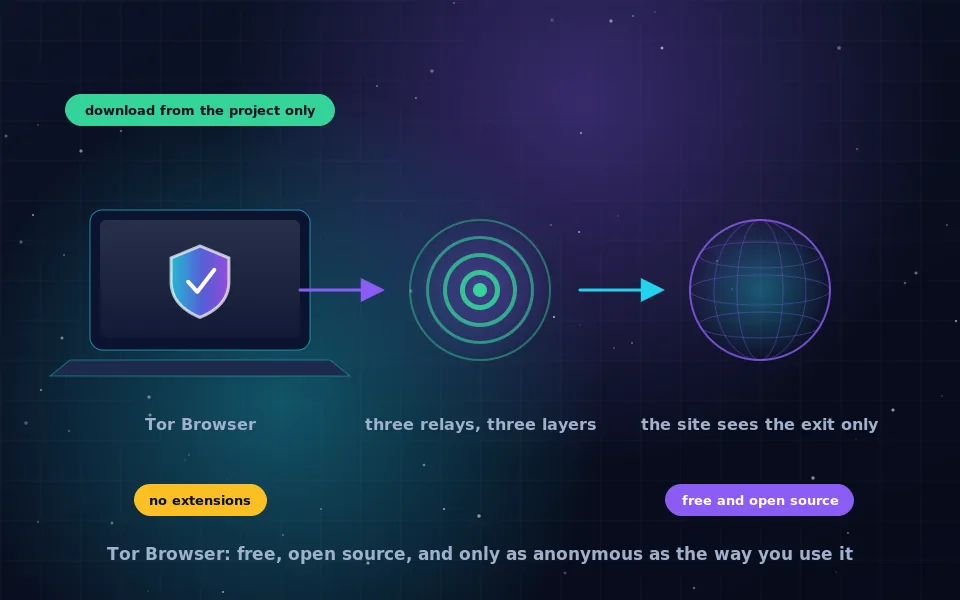
Tor Browser aims for uniformity. All users report the same screen size classes, fonts and features, and identifying APIs are blocked or normalised. On a test, a Tor Browser user typically shares a fingerprint with many others. It is the strongest defence and works only if you leave it unmodified.
Brave randomises. Canvas, WebGL, audio and some other APIs return slightly altered values in each session, so your fingerprint changes and cannot be followed across visits. It also blocks known fingerprinting scripts. Brave's approach is called "farbling" in its documentation, and it is on by default with a stricter option in the shields settings.
Firefox blocks known fingerprinting scripts by default through its tracking protection lists and offers a stronger fingerprinting resistance mode, adapted from Tor Browser's work, that normalises many attributes at some cost to site compatibility. Its protections dashboard reports fingerprinting attempts.
Safari limits some identifying attributes and presents a simplified configuration to sites, which reduces fingerprint diversity among Apple users, and has added further protections in private windows. It does not randomise.
Chrome and Edge have begun to limit some APIs and reduce user agent detail but remain broadly fingerprintable by default.
Preventing fingerprinting: an eight-step sequence
Work through these in order, testing after each.
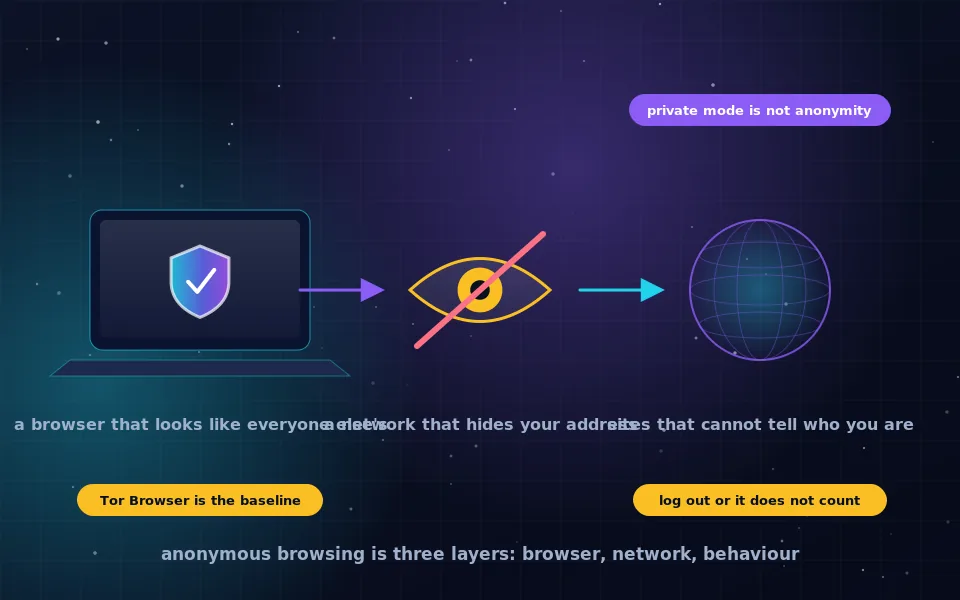
- Pick a browser with real protections for the browsing you want unlinked: Tor Browser for anonymity, Brave or Firefox for everyday privacy.
- Turn on the strongest fingerprinting protection the browser offers: Brave's strict shields setting or Firefox's enhanced protection with fingerprinting resistance. In Tor Browser, raise the Security Level.
- Remove extensions you do not need. Each one that changes page behaviour is detectable and adds to your fingerprint. This is why Tor Browser forbids them.
- Use the default window size. Do not maximise Tor Browser; in other browsers, an unusual size is one more attribute.
- Keep the browser updated so that you share a version with the most people.
- Do not install unusual fonts system-wide if you can avoid it, or accept that they identify you.
- Retest. Aim for "not unique" in Tor Browser and for a fingerprint that changes between reloads in Brave or Firefox.
- Keep identities in separate browsers. A protected browser you also log in to is protected in name only.
What does not help, or makes it worse
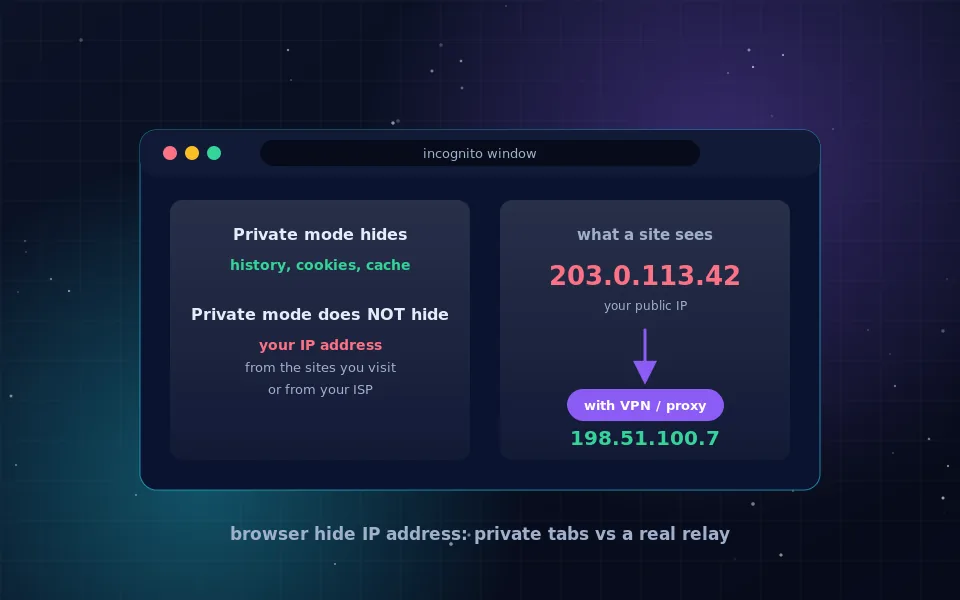
Spoofing the user agent alone does nothing, because dozens of other attributes still reveal the real browser, and an inconsistent user agent is itself distinctive. Installing several anti-fingerprinting extensions at once tends to create a rarer combination than having none. Disabling JavaScript entirely prevents most fingerprinting but breaks most sites and is itself an unusual signal. A VPN changes your IP address and nothing else; run the test with and without it and the fingerprint will be identical. Clearing cookies is irrelevant to fingerprinting by definition.
Testing for other leaks at the same time
While you are testing, check two related things. A DNS or IP leak test shows whether your real address is visible when you expect a VPN or Tor to hide it; the DNS leak test guide on this site explains. And a check of WebRTC behaviour shows whether your browser exposes local network addresses to pages, which some fingerprinting tests include. Together with the fingerprint report, these give a full picture of what a site learns about you on arrival.
What browser makers and researchers report
The recommendations above follow the published positions of the browsers' developers and the findings of fingerprinting research.
Brave's documentation describes its randomisation approach and states that it is designed to make fingerprints differ across sessions and sites while keeping pages working; Mozilla's documentation describes Firefox's blocking of known fingerprinters and its resistance mode derived from Tor Browser.
The Tor Project's design documents explain that uniformity is the strongest defence and that any customisation, including extensions and window resizing, reduces the anonymity set.
Fingerprinting researchers who operate public test sites have noted that their visitor populations are skewed toward privacy-conscious users and that test results should be read as indicating which attributes are identifying rather than as an absolute measure of trackability.
Test, change one thing, test again
Open a fingerprinting test now in the browser you use most and look at the attribute breakdown. Turn on your browser's fingerprinting protection, remove the extensions you do not need, and test again. Then open Tor Browser and see the difference. Ten minutes of this will teach you more about tracking than any article, including this one.
Frequently asked questions
How do I test my browser fingerprint?
Open a fingerprinting test site run by a privacy organisation or research project in the browser you want to check. It reads the same attributes a tracker would and reports whether your fingerprint is unique among recent visitors and which attributes make it so.
What does a browser fingerprinting check actually measure?
It collects attributes such as user agent, screen size, fonts, canvas and WebGL rendering, audio processing, time zone and language, and compares the combination with other visitors. It then estimates how identifying each attribute is and whether the whole set has been seen before.
Does Brave stop browser fingerprinting?
Brave randomises the output of common fingerprinting APIs such as canvas and audio on each session and blocks known fingerprinting scripts, so a tracker sees a different fingerprint each time. It is one of the strongest defaults among mainstream browsers, though not equivalent to Tor Browser's uniformity.
Can I stop fingerprinting completely?
You can make fingerprinting useless for tracking, either by blending in with Tor Browser or by randomising with Brave or Firefox's resistance mode. Some attributes, such as the operating system, will always be visible; the goal is to prevent the combination from identifying you.
Why does my test say I am unique even with protections on?
Extensions, unusual fonts, custom window sizes and rare hardware add distinguishing attributes, and test sites compare you against their own visitors, many of whom also have protections. Randomising browsers may still show as unique on a single visit while being untrackable across visits; check whether the fingerprint changes between reloads.
Last reviewed and updated on . Plain text version: /anonymity/browser-fingerprinting-test.txt.