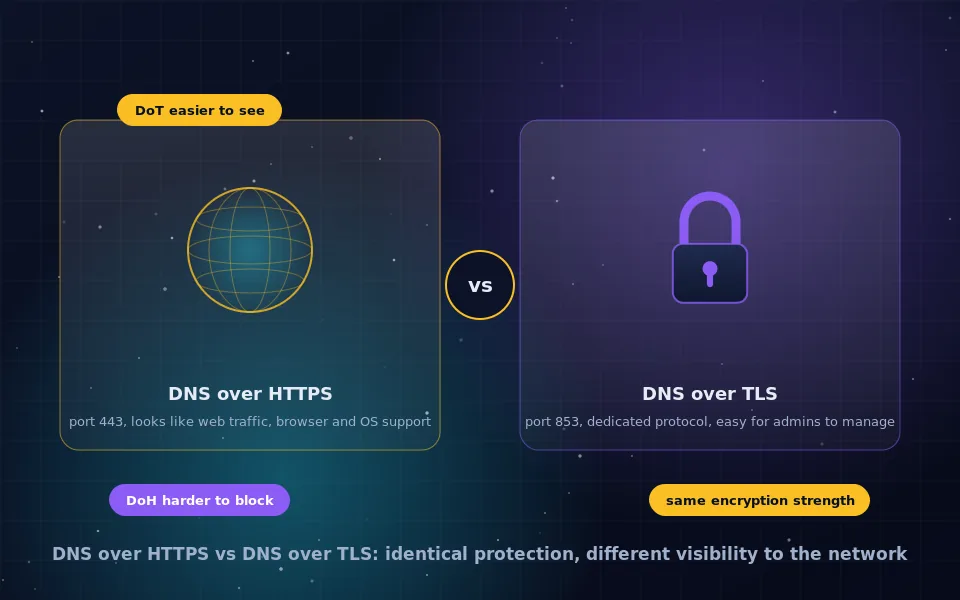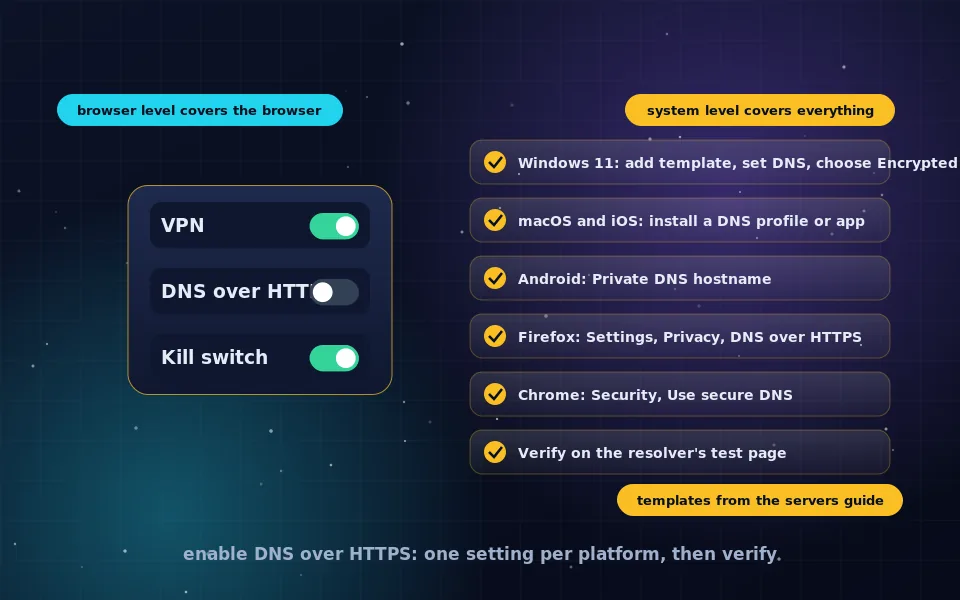
To enable DNS over HTTPS, use the system setting on your device so every app benefits: on Windows 11, set a manual DNS server and choose Encrypted only, registering a template first for resolvers that are not built in; on macOS and iOS, install a DNS profile or app from your chosen provider; on Android, enter a hostname under Private DNS. Browsers have their own settings that apply to the browser alone: Firefox under Privacy and Security, DNS over HTTPS, and Chrome under Security, Use secure DNS. Afterward, confirm it works on the resolver's test page.
The settings exist on every platform but none of them are labelled the same way, and Windows in particular requires a step most guides skip. This guide gives the exact steps for each system and browser, using templates and hostnames from the servers guide on this site, then covers verification, changing or disabling the setting, and the common failures.
Before you start: pick a resolver
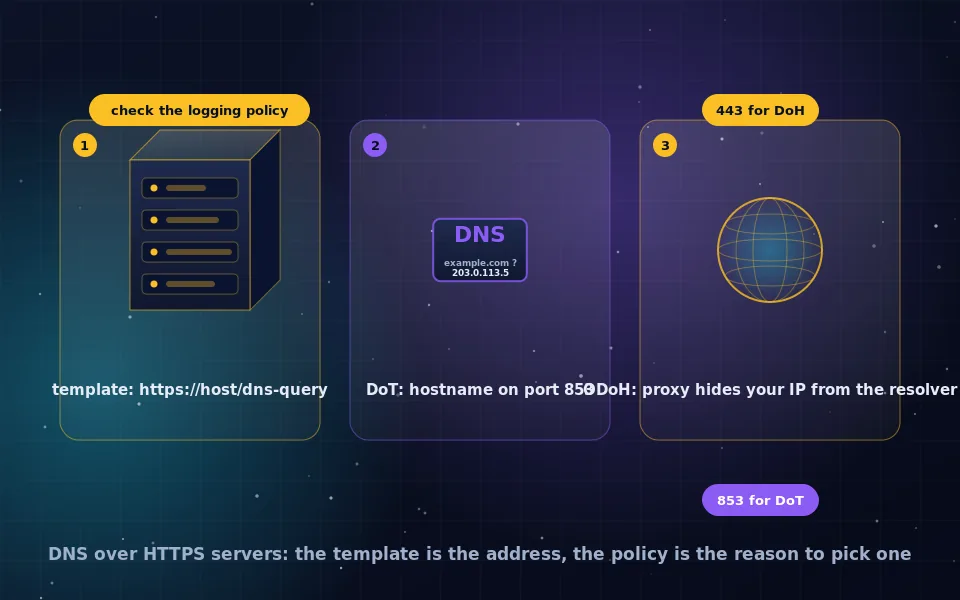
Choose from the servers guide on this site and note three things: the DoH template URL, the DoT hostname, and the IP addresses. Cloudflare, Quad9, Google, NextDNS and AdGuard are the most common choices; the DoH guide explains when to leave encrypted DNS off, chiefly when you run a local filter or need internal names.
Windows 11
Windows 11 supports DoH system-wide, with a quirk: it only encrypts to resolvers whose templates it knows. Cloudflare, Google and Quad9 are built in; others must be registered first.
Register a template for other resolvers by opening Terminal as administrator and running:
netsh dns add encryption server=9.9.9.9 dohtemplate=https://dns.quad9.net/dns-query
Substitute your resolver's IP and template, and repeat for each IP address, including the secondary.
Configure the connection:
- Open Settings, Network and internet, and select Wi-Fi or Ethernet, then your connection's properties, or Hardware properties.
- Next to DNS server assignment, click Edit.
- Change Automatic to Manual, turn on IPv4, and enter the preferred and alternate DNS IP addresses.
- Under DNS over HTTPS for each, choose On (automatic template) if the resolver is built in or registered, or On (manual template) and paste the template.
- Optionally turn on Fallback to plaintext only if you need it; leaving it off ensures lookups are never sent unencrypted.
- Repeat for IPv6 if your resolver publishes IPv6 addresses.
- Save. The connection's properties should now show DNS servers marked as Encrypted.
Windows 10 does not support DoH in the settings interface; use a browser's DoH setting or a local resolver on Windows 10.
macOS
macOS supports encrypted DNS through configuration profiles rather than a settings field.
- Obtain a profile from your resolver. NextDNS, Cloudflare, AdGuard and Quad9 publish
.mobileconfigprofiles or apps, and independent generators exist for any DoH template. - Download and open the profile. macOS asks you to review it in System Settings, Privacy and Security, Profiles.
- Click the profile and Install, authenticating as an administrator.
- The profile applies system-wide. Some providers' profiles cover only Wi-Fi or only certain interfaces; check the description.
Alternatively, install the provider's app, which configures the same thing with a graphical toggle and sometimes per-network rules. Safari and every other app then use encrypted DNS. To remove, delete the profile from the same pane. The Mac file encryption guide on this site is unrelated to DNS but sits alongside this in your Mac privacy setup.
iPhone and iPad
iOS uses the same profile mechanism.
- In Safari, download the provider's profile, or install the provider's app from the App Store.
- For a profile, open Settings, and a Profile Downloaded entry appears near the top; tap it, then Install, entering your passcode.
- Or for an app, open it and enable encrypted DNS, which installs a DNS configuration under Settings, General, VPN and Device Management.
- Verify under Settings, General, VPN and Device Management that the DNS configuration is active.
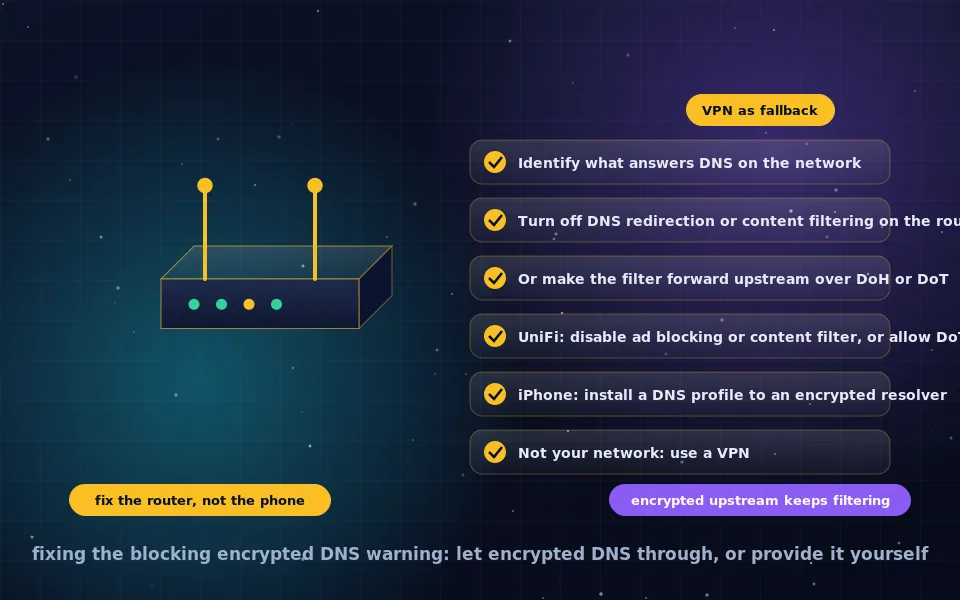
With a profile installed, the network-blocking warning discussed in the troubleshooting guide on this site clears on networks that only redirect port 53. On networks that block encrypted DNS entirely, the warning remains and a VPN is the solution.
Android
Android's system setting uses DNS over TLS, with DoH added automatically for supported resolvers on recent versions.
- Open Settings, Network and internet, and find Private DNS; on some manufacturers' phones it is under Connections, More connection settings, or reached by searching Settings for Private DNS.
- Choose Private DNS provider hostname.
- Enter the resolver's DoT hostname, for example
dns.quad9.net,one.one.one.one,dns.adguard-dns.com, or your NextDNS profile hostname. - Save. The setting applies to all networks, Wi-Fi and mobile.
If a network blocks port 853, Android shows a connection warning and may lose connectivity until you switch to a network that permits it or set Private DNS to Automatic, which upgrades opportunistically. Chrome and Firefox on Android additionally have their own secure DNS settings as below.
Firefox
- Open Settings, then Privacy and Security, and scroll to DNS over HTTPS.
- Choose a protection level. Default Protection lets Firefox decide based on your region and network. Increased Protection uses DoH with fallback to system DNS on failure. Max Protection uses DoH only and shows an error rather than falling back.
- Choose a provider from the list, or select Custom and paste a template.
- Firefox also lets you add exceptions and detects managed networks that signal DoH should be off.
This setting affects Firefox's lookups only.
Chrome, Edge, Brave and other Chromium browsers
- Open Settings, Privacy and security, then Security.
- Turn on Use secure DNS.
- Choose With your current service provider, which upgrades to DoH automatically if your system resolver supports it, or select a provider from the dropdown, or choose Custom and paste a template.
In Edge the setting is under Privacy, search, and services, Security; in Brave under Privacy and security, Security. On managed devices, the option may be greyed out by policy. Chromium browsers disable DoH automatically when they detect a managed environment or parental controls.
Verify it worked
- Visit your resolver's test page. Cloudflare's shows whether DoH or DoT is in use; NextDNS's shows the profile and protocol; AdGuard, Quad9 and Mullvad have equivalents.
- Alternatively run a DNS leak test and confirm the resolver shown is the one you chose, not your ISP.
- On Windows,
Get-DnsClientDohServerAddressin PowerShell lists registered templates, and the connection properties show Encrypted. - On the iPhone, the Wi-Fi details screen should no longer show the blocking warning on networks that permit encrypted DNS.
Changing or disabling
Windows: return to Edit DNS and set Automatic, or change the addresses. macOS and iOS: remove the profile or disable it in the provider's app. Android: set Private DNS to Automatic or Off. Firefox and Chrome: set the protection level or toggle off. Changing resolvers is the same procedure with new values, and removing a registered Windows template uses netsh dns delete encryption server=IP.
Troubleshooting
- Windows shows Unencrypted despite the setting. The template is not registered for that IP; run the netsh command and re-save.
- A site or app fails to load. A filtering resolver may block it; test with an unfiltered variant, or add an exception in a configurable service.
- Internal or work names fail. Encrypted DNS to a public resolver cannot see them; disable it on that network or use the browser's automatic mode.
- iPhone still shows the network warning. The network blocks encrypted DNS ports; see the fixing guide on this site and consider a VPN.
- Ads return after enabling browser DoH at home. The browser is bypassing your Pi-hole or AdGuard Home; disable DoH in the browser on your home network or point it at your filter.
A six-point checklist
- Choose the resolver and copy its template, hostname and IPs.
- Configure at the system level first; add browser settings if you cannot change the system.
- On Windows 11, register templates for resolvers that are not built in.
- On Apple devices, use a profile or app.
- On Android, use the DoT hostname under Private DNS.
- Verify on the resolver's test page before assuming it works.
What the platform vendors document
The steps above follow the vendors' own documentation.
Microsoft documents DoH support in Windows 11 including the built-in resolver list, the netsh and PowerShell commands for registering templates, and the Encrypted only and fallback options in the DNS settings interface.
Apple documents encrypted DNS support in iOS and macOS through configuration profiles and apps using the network extension framework, and Google documents Android's Private DNS setting based on DNS over TLS with opportunistic DoH on newer versions.
Mozilla and the Chromium project document their browsers' DoH modes, the fallback behaviour, the built-in provider lists, and the detection of managed networks and parental controls that disable DoH automatically.
One setting per device, then check
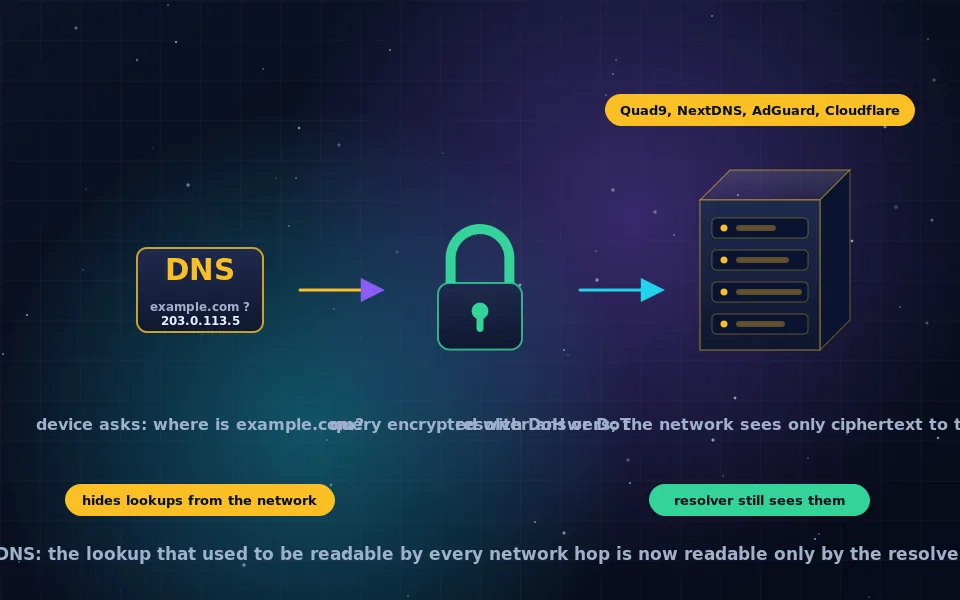
Set encrypted DNS at the system level on each device you own, register the template on Windows, and confirm on the test page. From that point on, every network you join sees only an encrypted connection to a resolver you chose, and the DNS guides on this site cover what to do when a network objects.
Frequently asked questions
How do I enable DNS over HTTPS on Windows 11?
First register a template if the resolver is not built in: in an administrator terminal run netsh dns add encryption server=IP dohtemplate=URL. Then open Settings, Network and internet, your connection, Hardware properties, Edit DNS, set Manual, enter the resolver IP, and choose Encrypted only under DNS over HTTPS. Cloudflare, Google and Quad9 are built in.
How do I enable DNS over HTTPS on Android?
Android uses DNS over TLS for its system setting. Open Settings, Network and internet, Private DNS, choose Private DNS provider hostname, and enter the resolver's DoT hostname such as dns.quad9.net or one.one.one.one. Recent Android versions add DoH automatically for resolvers that support it. Chrome on Android has its own secure DNS setting too.
How do I enable DNS over HTTPS on iPhone and Mac?
Install a DNS configuration profile from your chosen resolver, which providers such as NextDNS, Cloudflare, AdGuard and Quad9 offer, or use their app from the App Store. On iOS the profile is installed under Settings, General, VPN and Device Management; on macOS under System Settings, Privacy and Security, Profiles. Apple offers no manual DoH field in the standard network settings.
How do I turn on DNS over HTTPS in Firefox?
Open Settings, Privacy and Security, scroll to DNS over HTTPS, and choose Increased Protection or Max Protection, then pick a provider or enter a custom template. Default Protection lets Firefox decide. Off disables it. Max Protection never falls back to plain DNS.
How do I turn on DNS over HTTPS in Chrome?
Open Settings, Privacy and security, Security, and turn on Use secure DNS. Choose With your current service provider to upgrade automatically when your resolver supports DoH, or select a provider from the list or add a custom template. Edge, Brave and other Chromium browsers have the same setting under similar names.
Last reviewed and updated on . Plain text version: /encryption/enable-dns-over-https.txt.