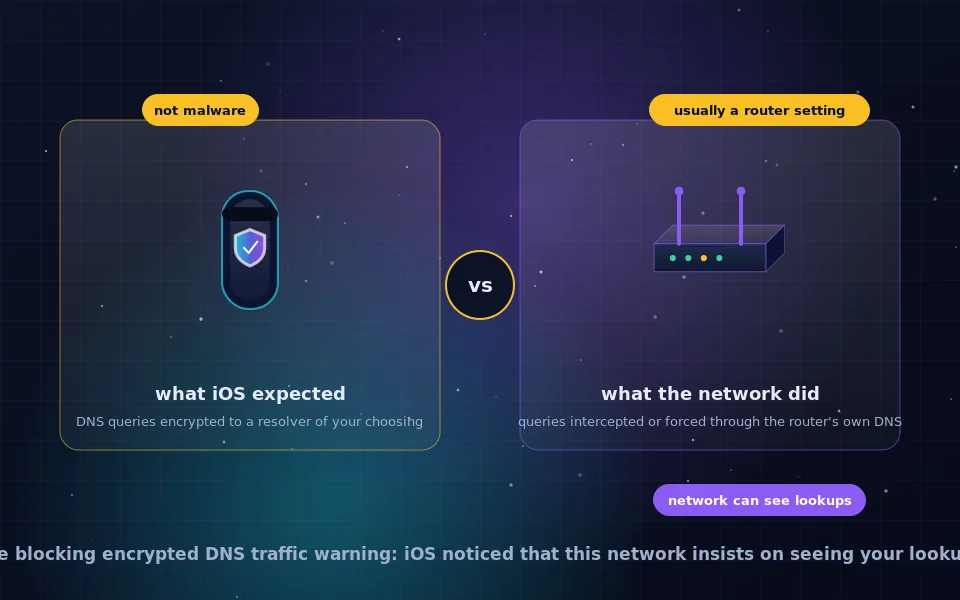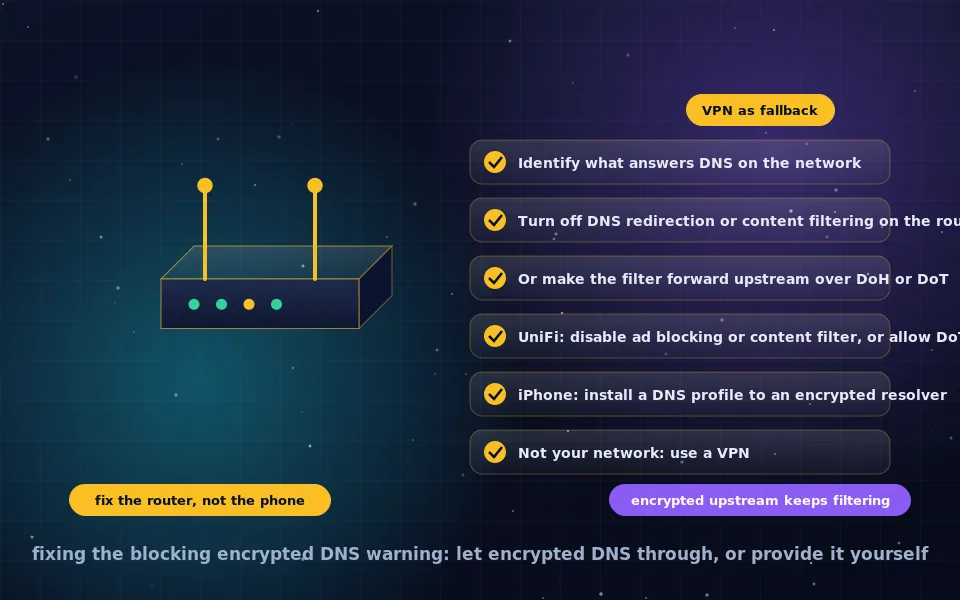
To fix the "This network is blocking encrypted DNS traffic" warning, find the device on the network that intercepts DNS, usually the router or a filter such as Pi-hole or AdGuard Home, and either turn off its DNS redirection and filtering features or configure it to forward queries upstream over DNS over TLS or DNS over HTTPS so it provides encrypted DNS itself. On Ubiquiti UniFi, disable Ad Blocking and Content Filtering or enable the gateway's encrypted upstream DNS option. If the network is not yours, install a DNS profile on the iPhone for an encrypted resolver, and if the network blocks that too, use a VPN, which carries DNS inside its tunnel.
The companion guide on this site explains what the warning means and why it is usually benign. This guide is about making it go away properly: diagnosing which device is responsible, the fix for each common cause, and what to do when you cannot change the network. The goal is not to hide the warning but to ensure your lookups are actually encrypted, which also clears it.
Step one: find what is intercepting DNS
The warning is triggered by whichever device answers DNS on the network and blocks alternatives. Identify it.
- On the iPhone, open Wi-Fi settings, tap the network, and look at the DNS section under Configure DNS. The listed server is what the network hands out, usually the router's own address.
- Log in to the router's admin page at that address and check its DNS settings, parental controls, security or filtering features.
- If the DNS server listed is not the router, it is a filter box on the network such as Pi-hole, AdGuard Home, or a mesh hub. Note which.
- If you are on an ISP-supplied gateway with your own router behind it, check both.
- For a network you do not control, skip to the device-side and VPN options below.
Fix on a consumer or ISP router
Router firmware varies, but the features that intercept DNS have recognisable names.
- DNS redirection, DNS hijacking protection, or force DNS. Turn it off. This setting rewrites all port 53 traffic to the router's resolver.
- Parental controls, safe browsing, secure DNS, or family shield. These work by intercepting DNS and often block encrypted alternatives. Disable them, or if the router supports an encrypted upstream, use that.
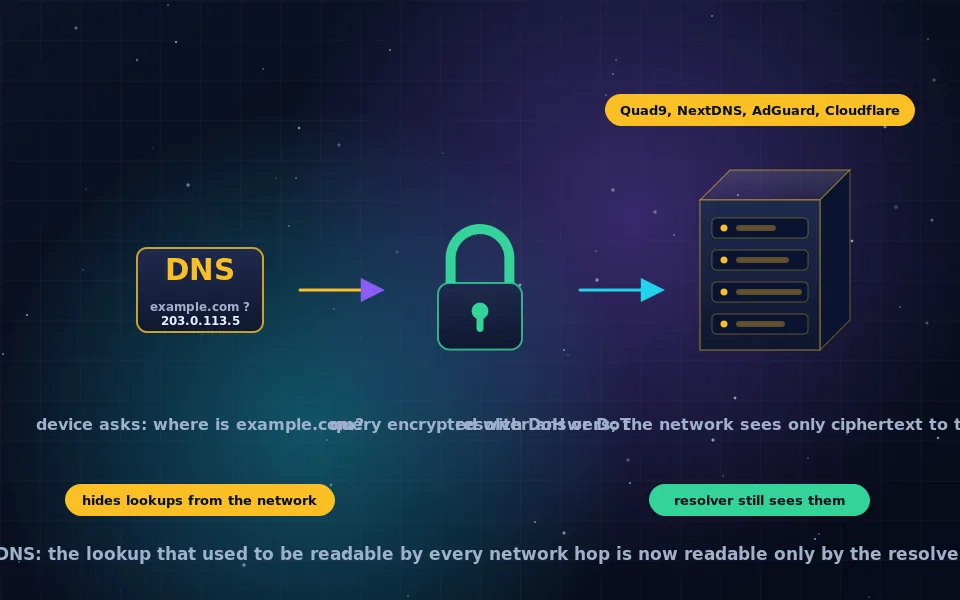
- DNS over TLS or DNS over HTTPS upstream. Some routers, including many running OpenWrt, ASUS firmware, and Fritz!Box, can forward queries upstream over DoT or DoH. Enable it, pointing at a resolver from the servers guide on this site. The router then provides encrypted DNS and Apple devices are satisfied, while the network still sees plain DNS only within your own walls.
- Advertise a different DNS server via DHCP. Alternatively, set the router's DHCP to hand out a public resolver such as 9.9.9.9 directly, without redirection. Devices then reach the resolver, and iOS can upgrade to that resolver's encrypted service on its own for resolvers Apple recognises, or you add a profile.
ISP gateways sometimes lock these settings. If so, put the gateway in bridge mode or place your own router behind it and let your router handle DHCP and DNS.
Fix on Ubiquiti UniFi
UniFi's Ad Blocking and Content Filtering features redirect DNS and cause the warning on every Apple device.
- In the UniFi Network application, open Settings, then the network in question.
- Disable Ad Blocking if enabled, or accept that it will trigger the warning.
- Under Content Filtering, set to None, or if you want filtering, look for the encrypted DNS options available in recent versions, sometimes labelled DNS Shield, which let the gateway forward to an encrypted upstream and satisfy client checks.
- Check the firewall or traffic rules for any that block outbound port 853 or known DoH resolvers, and remove them if you want clients to use their own encrypted DNS.
- Reconnect the iPhone to the Wi-Fi to re-run the probe.
UniFi's exact menus change between versions; the vendor's documentation for your version describes the current location of these settings.
Fix on Pi-hole or AdGuard Home
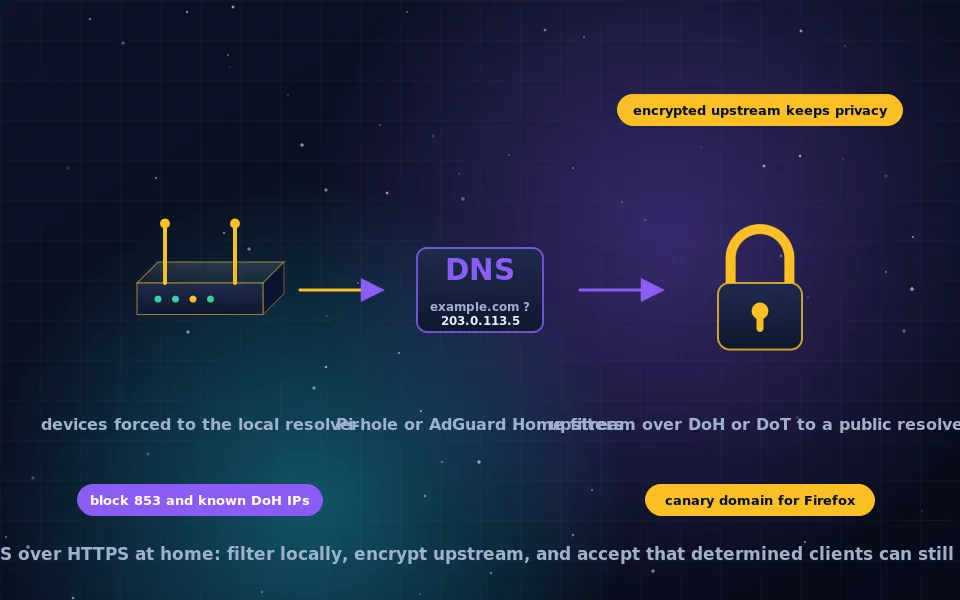
Filtering resolvers are the most common cause in technically minded households, and the fix that preserves filtering is to make the filter itself use encrypted upstream DNS.
Pi-hole. Pi-hole does not speak DoH or DoT to clients or upstream on its own. Install cloudflared, unbound, dnscrypt-proxy or stubby alongside it as the upstream, configured for DoH or DoT to your chosen resolver, and set Pi-hole's upstream to that local service. Lookups are then encrypted from your network outward. For iOS to stop warning, the phone must also not be blocked from encrypted DNS; if you force all DNS through Pi-hole via firewall rules, iOS will still warn, and the alternative is to advertise Pi-hole via DHCP without forcing, accepting that devices can bypass it.
AdGuard Home. AdGuard Home supports encrypted upstream natively: in Settings, DNS settings, enter upstream servers as tls:// or https:// addresses. It can also serve DoH and DoT to clients if you give it a certificate and enable encryption settings, which lets iOS use encrypted DNS to your own resolver via a profile that points to it. AdGuard's documentation includes an Apple DNS profile generator for this.
The blocking guide on this site covers the administrator's perspective on these setups, including deliberately preventing devices from bypassing the filter.
Fix on the iPhone when the network is not yours
If you cannot change the network, configure the iPhone to use encrypted DNS directly.
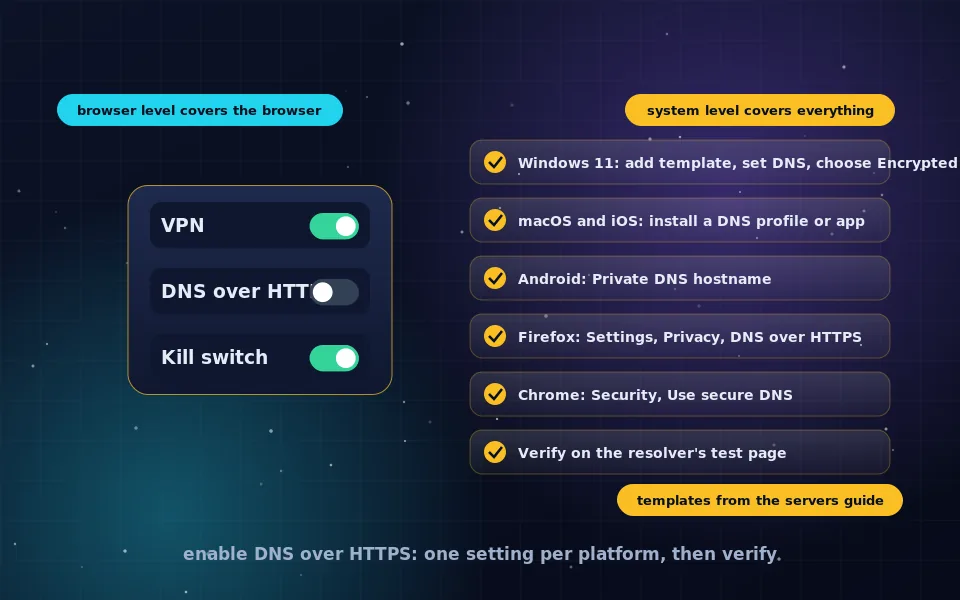
- Install a DNS profile. NextDNS, Cloudflare, AdGuard and Quad9 all provide iOS configuration profiles or apps that set encrypted DNS system-wide. The enabling guide on this site has the steps.
- Reconnect to the Wi-Fi. If the network only redirects port 53, the profile's DoH connection on port 443 succeeds and the warning clears.
- If the network also blocks outbound connections to known resolvers, or intercepts port 443 to those IPs, the profile fails and the warning stays. The network is enforcing its policy, and the honest fix is a VPN.
The VPN fallback
A VPN, described in the VPN guides on this site, wraps all traffic including DNS in an encrypted tunnel to the VPN server, and DNS is answered by the VPN provider's resolver. The local network sees only the tunnel. The Wi-Fi settings screen may still show the warning, because the network still blocks encrypted DNS, but your lookups are no longer visible to it. On any network you do not trust, this is the right approach regardless of the warning, and it also carries the caveat that the VPN provider now sees the lookups instead, as the no-logs VPN guide on this site discusses.
Verify the fix
After any change, reconnect to Wi-Fi and check the network details for the warning. Then confirm encryption independently: visit your resolver's test page, such as Cloudflare's or NextDNS's, which report whether your queries arrive encrypted, or run a DNS leak test. A warning that cleared but a test that shows the ISP's resolver means the network is still intercepting.
A seven-point fix checklist
- Identify the DNS server the network hands out.
- On your router, disable DNS redirection and filtering, or enable encrypted upstream.
- On UniFi, disable Ad Blocking and Content Filtering or configure encrypted upstream and allow port 853.
- On Pi-hole or AdGuard Home, add a DoH or DoT upstream, and do not force-redirect port 53 if you want iOS satisfied.
- On someone else's network, install a DNS profile; if blocked, use a VPN.
- Reconnect and verify with a resolver test page.
- Do not disable the warning by ignoring it; it reflects real visibility.
What vendors and administrators document
The fixes above follow vendor documentation and common administrator practice.
Apple documents encrypted DNS support and configuration profiles for iOS, and resolver operators including NextDNS, Cloudflare, AdGuard and Quad9 publish iOS profiles and apps that configure encrypted DNS system-wide.
Ubiquiti's documentation describes Ad Blocking and Content Filtering as DNS-based features and describes the encrypted DNS options in recent UniFi Network versions; Pi-hole's documentation describes adding encrypted upstream through cloudflared or unbound, and AdGuard Home's documentation describes native encrypted upstream and serving encrypted DNS to clients.
Network administrators report that the Apple warning most often results from forced DNS redirection intended to keep devices on a local filter, and describe encrypted upstream forwarding as the configuration that keeps filtering while restoring encrypted lookups.
Encrypt at the router and the warning takes care of itself
Find the device answering DNS, give it an encrypted upstream or stop it intercepting, and reconnect. Your whole network's lookups leave encrypted, every Apple device stops complaining, and any filtering you value keeps working. Away from home, a DNS profile or a VPN does the same for the phone alone.
Frequently asked questions
Why is my network blocking encrypted DNS traffic?
Because a device on it, usually the router or a DNS filter such as Pi-hole or AdGuard Home, intercepts all DNS queries and forces them through its own plain-text resolver, and either blocks or does not support the encrypted protocols. ISP-supplied routers, mesh systems with parental controls and prosumer gear with ad blocking commonly do this by default.
How do I fix the network is blocking encrypted DNS traffic on my router?
Log in to the router and look for DNS redirection, DNS filtering, parental controls, safe browsing or ad blocking, and turn off the feature that intercepts DNS, or configure the router to use DNS over TLS or DNS over HTTPS upstream if it supports it. If your ISP's router cannot be changed, place your own router behind it or use a DNS profile on the device.
How do I fix encrypted DNS blocking on Ubiquiti UniFi?
In the UniFi network settings, disable Ad Blocking and Content Filtering for the network, or if you want to keep filtering, ensure the gateway allows outbound port 853 and configure DNS Shield or the DNS over HTTPS upstream option available in recent UniFi versions so the gateway itself uses encrypted DNS. Apple devices then stop showing the warning.
Can I fix the warning on the iPhone itself?
Partly. Install a DNS configuration profile from a provider such as NextDNS, Cloudflare, AdGuard or Quad9, or use their app, so the iPhone sends DNS over HTTPS directly to that resolver. If the network only redirects port 53, this works and the warning clears. If the network also blocks encrypted DNS ports, the warning remains and a VPN is the fix.
Does a VPN fix the blocking encrypted DNS traffic warning?
Yes, in effect. With a VPN connected, DNS queries travel inside the encrypted tunnel to the VPN's resolver and the local network sees nothing. The Wi-Fi settings may still display the warning because it describes the network, but your lookups are no longer exposed to it.
Last reviewed and updated on . Plain text version: /encryption/fix-network-blocking-encrypted-dns.txt.