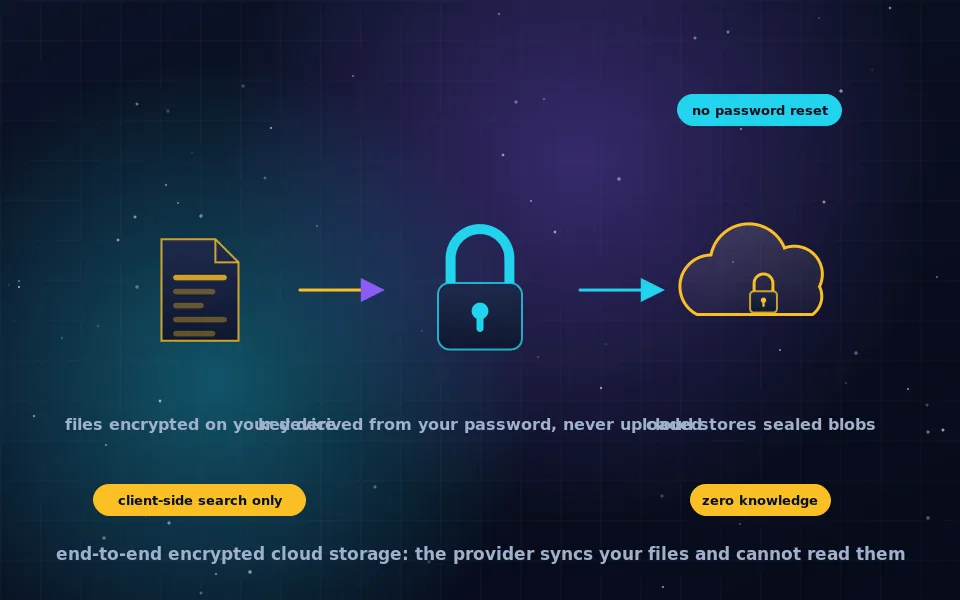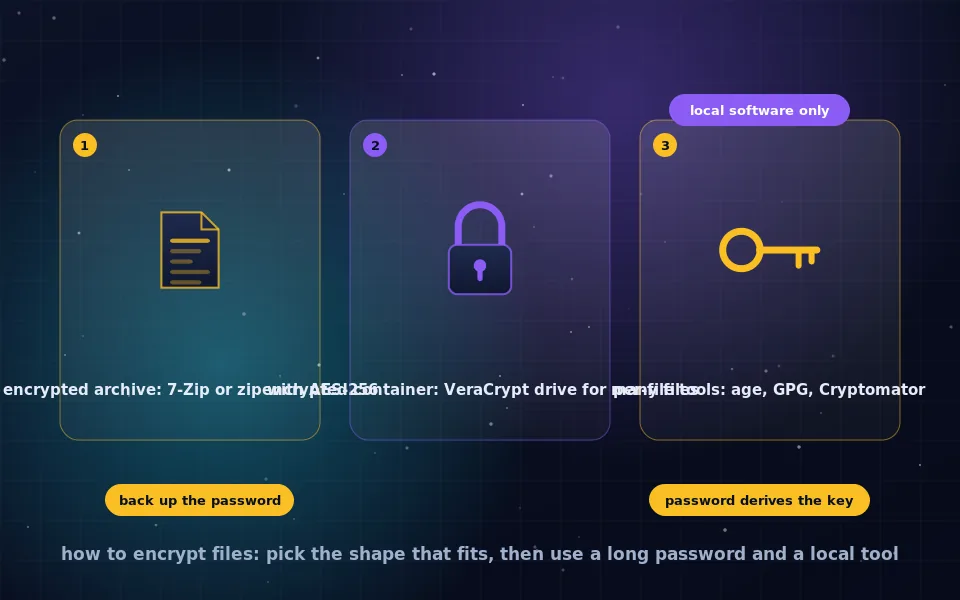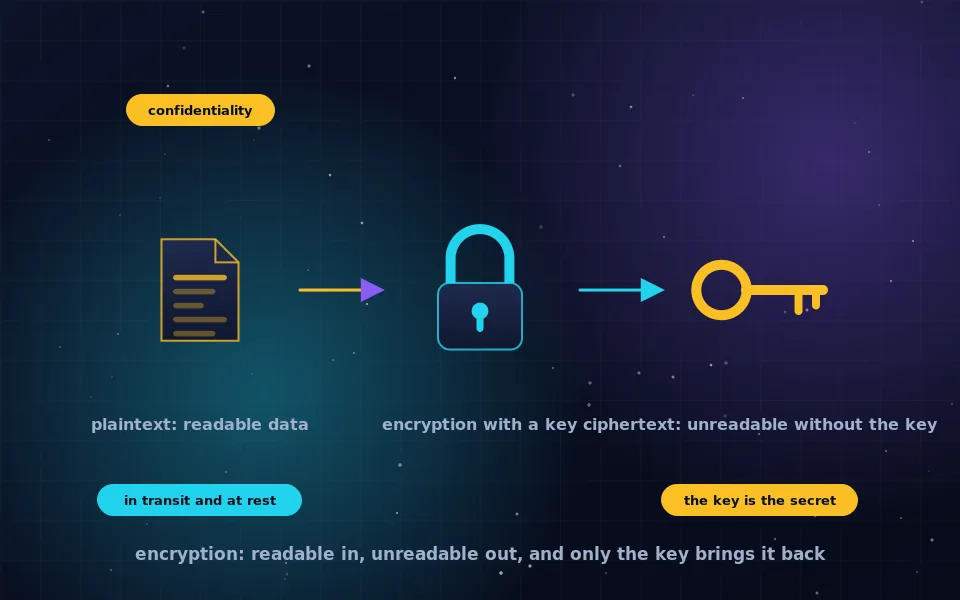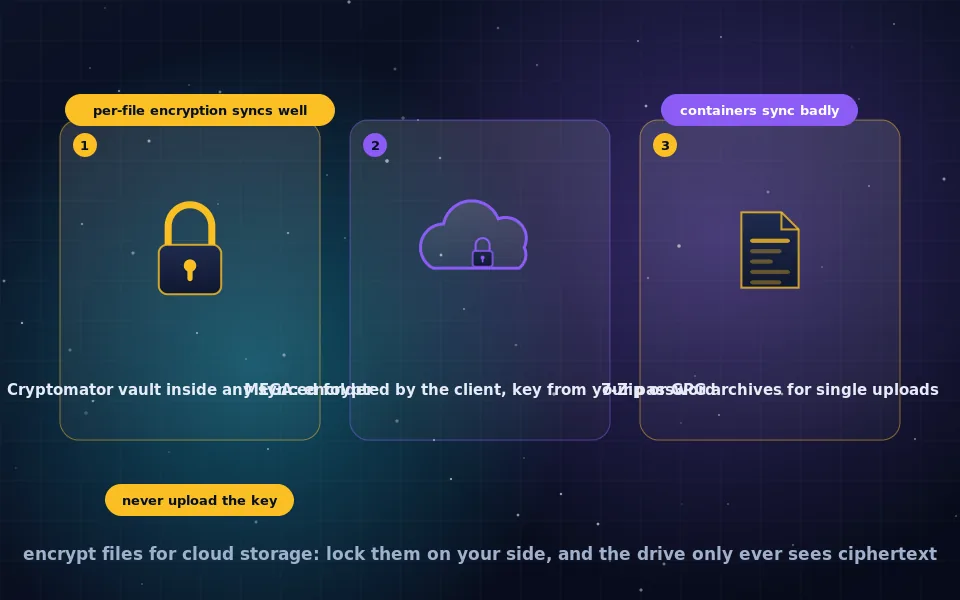
To encrypt files for cloud storage, encrypt them on your device before they enter the synced folder, so that Dropbox, Google Drive, OneDrive or any other provider only ever stores ciphertext. The most practical way is a Cryptomator vault, a folder inside your cloud drive that encrypts each file individually and appears as a normal drive when unlocked; for single files, an encrypted 7-Zip, GPG or age archive works. MEGA encrypts in its client by default so that MEGA cannot read your files, with caveats about its web client and lost passwords.
Most people already have cloud storage they are comfortable with, and switching providers for privacy is disruptive. Encrypting before upload gets you zero-knowledge storage on the drive you already use, as the encrypted cloud storage guide on this site describes. This guide covers the vault approach and how to set it up, what MEGA's built-in encryption does and does not cover, manual encryption for individual files, how sharing works once files are encrypted, and the mistakes that undo the whole effort.
Why encrypt before uploading
A cloud provider encrypts your files on its servers with its keys, which protects against stolen disks and nothing else. It can read, index, scan and disclose your files, and so can anyone who breaches it or compromises your account. Encrypting on your device first means the provider receives sealed blobs. Even a full account takeover exposes only ciphertext, provided your encryption password is not also in the account. The provider keeps doing what it is good at, storing and syncing, and stops being able to look.
Method one: a Cryptomator vault on any drive
Cryptomator is free, open-source software for Windows, macOS, Linux, Android and iOS that creates encrypted vaults designed for cloud sync.
- Install Cryptomator from its official site or your platform's app store.
- Create a new vault and choose a location inside your Dropbox, Google Drive, OneDrive or other synced folder. Set a strong password and save the recovery key it offers somewhere offline.
- Unlock the vault. Cryptomator mounts it as a virtual drive or folder on your computer.
- Move files into the virtual drive. Each file is encrypted individually, including its name, and written to the vault folder as an encrypted file, which your cloud client syncs like any other.
- Lock the vault when done. On another device, install Cryptomator, point it at the synced vault folder, enter the password, and the files appear.
Because each file is encrypted separately, edits re-upload only that file, and the design tolerates the way cloud clients sync. Cryptomator's format and code are public and have been audited, and the mobile apps read the same vaults. The result is zero-knowledge storage on a drive that has no idea it is providing it.
Alternatives with the same per-file design exist, including some paid tools with more polished sharing. The criteria in the encrypted cloud storage guide apply: open source, audited, encrypted names, documented key derivation.
Method two: MEGA's built-in encryption
MEGA is a cloud provider that encrypts in the client by default. Your password derives a master key on your device, files are encrypted before upload, and MEGA's servers hold only ciphertext, which MEGA describes as user-controlled encryption. Its client source code is published, and it offers a comparatively large free tier, which is why it appears in searches for encrypted cloud storage.
The caveats are worth understanding. MEGA's web interface loads its encryption code from MEGA's servers each visit, so you are trusting that the code served today is the code that was reviewed; the desktop and mobile apps are installed and do not have this issue. A forgotten password means lost data unless you exported the recovery key MEGA offers. Public sharing links embed the decryption key in the link, so anyone who obtains the link has the file. And MEGA knows file sizes, structure and activity, like any zero-knowledge provider. Used through the apps with the recovery key saved, MEGA delivers client-side encryption without extra tools.
Method three: encrypt individual files
For a few files, or files you upload once and rarely change, encrypt each one before adding it to the cloud folder.
- 7-Zip on Windows, or its equivalents elsewhere, creates an archive with AES-256 and encrypted file names, as the Windows file encryption guide on this site details.
- GPG encrypts a file with a passphrase in one command, covered in the GPG guide.
- age is a small modern tool with the same purpose and fewer options to misconfigure.
- Encrypted PDFs and office documents protect one document, useful when the recipient will open it directly; the PDF guide covers settings that matter.
The drawbacks are that you must decrypt to edit and re-encrypt afterward, and that the file names are visible unless you rename them or archive several files together.
What not to use for cloud
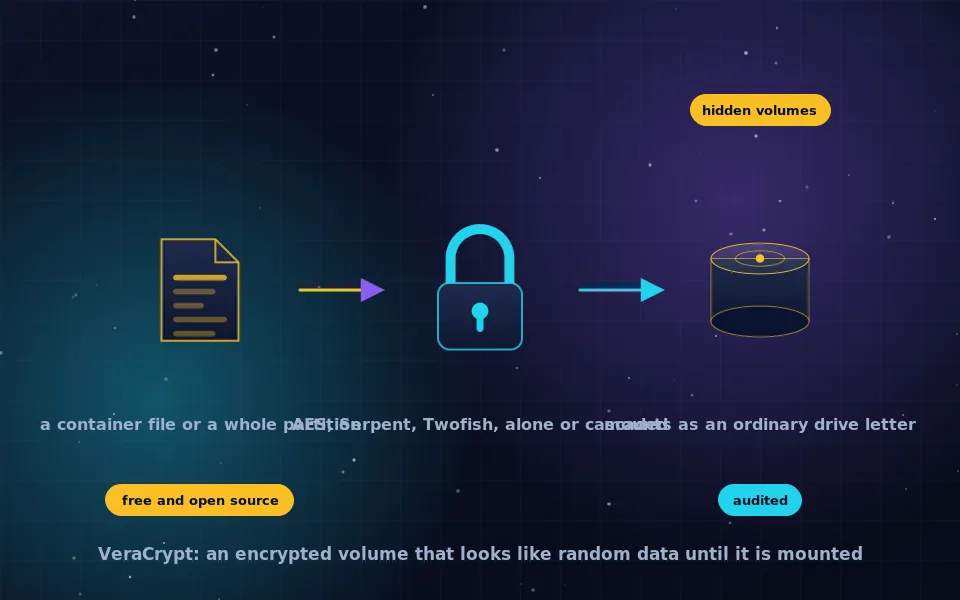
VeraCrypt or other containers. A container is a single large file; cloud sync clients handle it poorly, re-uploading large amounts after small changes, and two devices modifying it can corrupt the volume. Containers are excellent for local drives and USB sticks, as the VeraCrypt guides on this site describe, and wrong for sync.
Provider vault features. Dropbox's vault, OneDrive's Personal Vault and similar folders add a PIN or second factor and provide some protection against a casual intruder on your account. The provider still holds the keys and can read the files. They are not end-to-end encryption.
Online encryption websites. Uploading a file to a site that promises to encrypt it means an unknown third party has the plaintext. Encrypt locally.
Sharing encrypted files
Encryption complicates sharing, and each method handles it differently. With a Cryptomator vault, share the vault password out of band and the recipient opens the same synced folder with Cryptomator, which suits trusted collaborators and not one-off recipients. With MEGA, a share link carries the key; send it over a private channel and treat it as the file itself. With individual archives, share the file through the cloud and the password through a different channel, never in the same message or the same account. For a recipient with a PGP key, encrypt the file to their key and no password needs to travel at all.
An eight-point checklist
- Encrypt on your device before the file reaches the synced folder.
- Prefer per-file encryption for anything that syncs; reserve containers for local storage.
- Use a long unique password from a password manager, and store the recovery key offline.
- Never keep the password or recovery key in the same cloud account, in a synced note, or in the file name.
- Verify that encrypted file names are encrypted too, if names are sensitive.
- Use installed apps rather than web clients for anything that matters.
- Keep an offline backup of the encrypted files and of the key; the cloud is one copy.
- Test that you can decrypt on a second device before trusting the setup.
What tool developers and reviewers say
The recommendations here follow the tools' own documentation and independent assessments.
Cryptomator's developers document that its per-file encryption format was designed specifically for cloud sync, that file names and contents are encrypted, and that the software has undergone independent audits whose reports are public.
MEGA documents its client-side encryption model, the necessity of the recovery key, and the presence of the decryption key in share links, and publishes its client source code.
Security reviewers comparing cloud encryption approaches consistently recommend per-file tools over containers for synced storage, describe provider vault folders as access controls rather than encryption from the provider, and advise against browser-based encryption for sensitive data.
Lock the folder you already have
Install Cryptomator, create a vault in your existing cloud folder, save the recovery key, and move the files that matter into it. Your provider keeps syncing and loses the ability to read, which is the entire goal. For the rest of what cloud encryption can and cannot do, the encrypted cloud storage guide on this site takes it from here.
Frequently asked questions
How do I encrypt files before uploading to cloud storage?
The easiest method is a Cryptomator vault: create a vault inside your Dropbox, Google Drive or OneDrive folder, unlock it to reveal a virtual drive, and save files there. Each file is encrypted individually and syncs normally. For single files, encrypt them with 7-Zip, GPG or age before dragging them into the cloud folder.
How do I encrypt Dropbox files?
Dropbox itself cannot encrypt files so that Dropbox cannot read them. Use Cryptomator or a similar tool to create an encrypted vault in your Dropbox folder, or encrypt individual files before adding them. Dropbox's own vault feature adds a PIN but Dropbox still holds the keys.
Is MEGA encrypted cloud storage really end to end?
MEGA encrypts files in the client with keys derived from your password, so MEGA cannot read them, and it publishes its client source. The caveats are that MEGA's web client delivers the encryption code from MEGA's servers each time you load it, that a lost password means lost data unless you saved the recovery key, and that public links contain the key.
Can I put a VeraCrypt container in Dropbox?
You can, but it syncs poorly. A container is one large file, and any change forces the whole file, or large parts of it, to re-upload, and simultaneous edits from two devices corrupt it. Per-file encryption tools such as Cryptomator are designed for sync; containers are designed for local drives.
What should I not do when encrypting for the cloud?
Do not store the password or recovery key in the same cloud account. Do not rely on a cloud provider's PIN-protected folder as end-to-end encryption. Do not use online encryption websites. Do not forget to keep an offline backup, since an encrypted file you cannot decrypt is lost.
Last reviewed and updated on . Plain text version: /encryption/encrypt-files-for-cloud.txt.