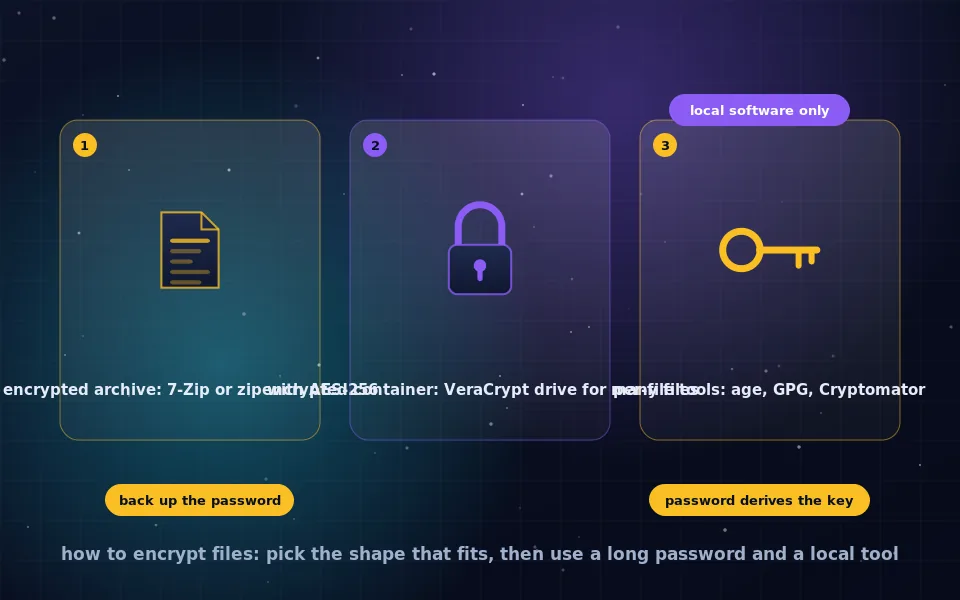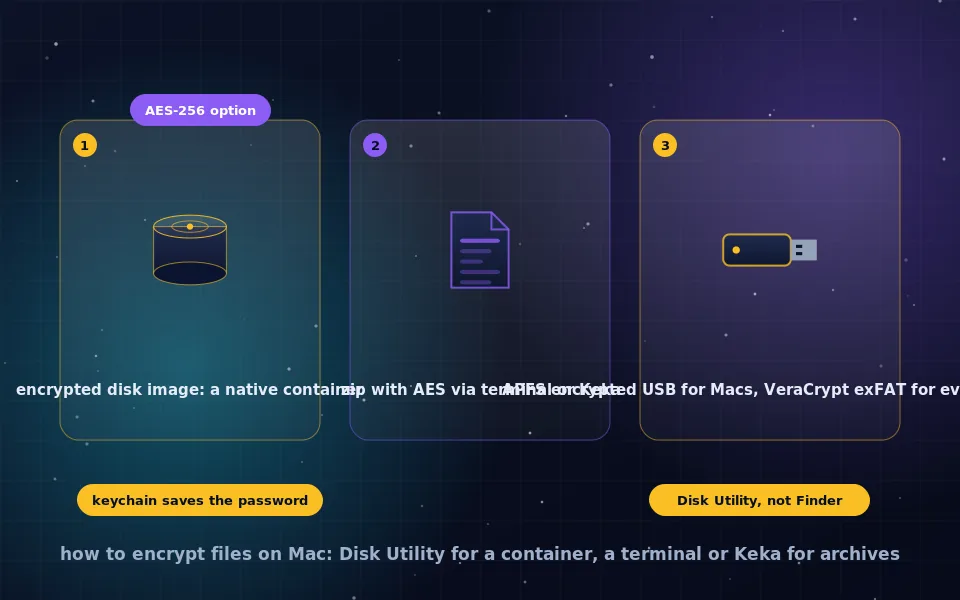
To encrypt files on a Mac, use Disk Utility to create an encrypted disk image, either from an existing folder or as a blank sparse bundle, with 256-bit AES encryption and a password; the image mounts as a drive when opened and stays sealed otherwise. To zip and encrypt files, use a free tool such as Keka that creates 7z or zip archives with AES-256, since Finder's Compress command does not encrypt and the terminal's zip -e uses a weak legacy scheme. To encrypt a USB drive for Mac use, erase it as APFS (Encrypted) in Disk Utility; for a drive that also opens on Windows and Linux, use VeraCrypt with exFAT.
macOS is well equipped for encryption, yet the tools are scattered across Disk Utility, Finder context menus, the terminal and third-party apps, and the obvious path, compressing in Finder, provides no protection at all. This guide covers encrypted disk images as the native container, archives with proper AES encryption, encrypted USB drives for Mac-only and cross-platform use, and how these relate to FileVault and iCloud.
Encrypted disk images: the native Mac container
A disk image is a file that macOS mounts as a drive. Encrypted, it is the Mac's built-in equivalent of a VeraCrypt container, described in the VeraCrypt guides on this site, and for Mac-only use it is simpler.
From an existing folder:
- Open Disk Utility from Applications, Utilities.
- Choose File, New Image, Image from Folder, and select the folder.
- Set Encryption to 256-bit AES. The 128-bit option is also secure; 256-bit costs little on modern Macs.
- Enter and verify a password. Untick Remember password in my keychain if you want to be prompted each time; leaving it ticked means anyone using your unlocked Mac can open the image.
- Set Image Format to read/write if you will add files later, or compressed for a fixed archive. Save.
- Double-click the resulting
.dmgto mount it after entering the password; eject it in Finder to seal it. Securely dispose of the original folder if the image should be the only copy.
A blank container you fill over time:
- Disk Utility, File, New Image, Blank Image.
- Set a name, a generous size, APFS or Mac OS Extended as the format, 256-bit AES encryption, and Image Format to sparse bundle disk image. A sparse bundle grows as you add files up to the size limit, and stores data in bands that back up and sync more efficiently than a single file.
- Save, mount, add files, eject.
An encrypted disk image can be stored anywhere, backed up, or placed in iCloud Drive or another cloud folder, though as the cloud encryption guide on this site explains, per-file vaults sync better than containers, and sparse bundles sync better than plain images.
Zip and encrypt files on Mac
Finder's Compress creates a ZIP without any encryption. Two routes add it.
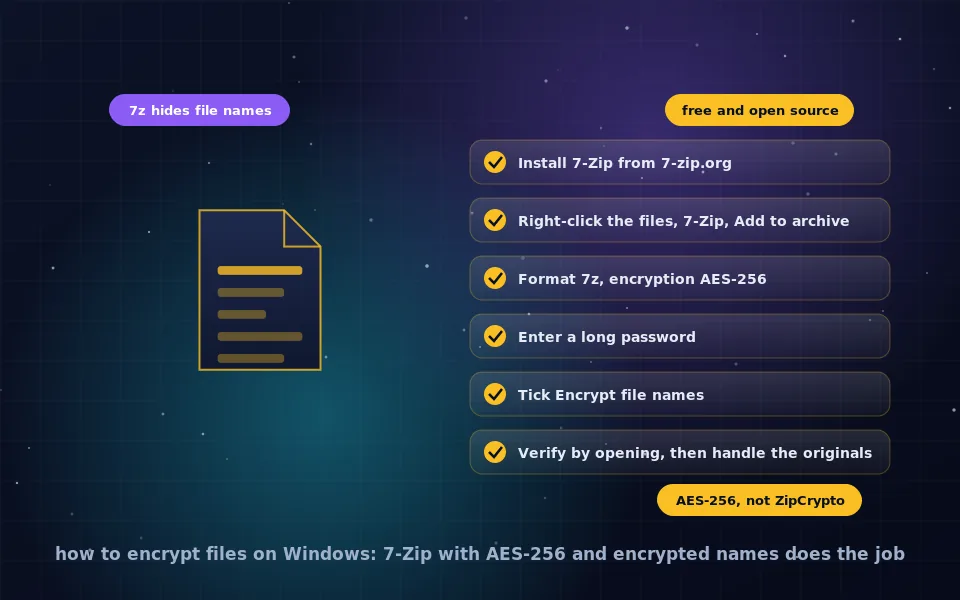
Terminal, legacy method. zip -er archive.zip folder prompts for a password and creates a ZIP that any system opens, using ZipCrypto, which is broken and unsuitable for sensitive data, as the Windows file encryption guide on this site explains. Use it only for casual obstruction, never for protection.
A third-party archiver with AES. Keka is a free, open-source archiver for macOS. Open Keka, choose 7z as the format, tick Encrypt filenames, enter a password, and drag files onto the window. The result is a 7z archive with AES-256 that opens on Windows with 7-Zip, on Linux with p7zip and on Macs with Keka or The Unarchiver. Keka can also make zip archives with AES-256, which Windows Explorer and Archive Utility cannot open but 7-Zip can. Other archivers offer the same; verify that AES-256 is selected and file names are encrypted.
For a single file to send, the command-line tools gpg and age, available through Homebrew, encrypt in one step; the Linux guide on this site covers the commands and they are identical on macOS.
Encrypt a USB drive for Mac
Mac only. Open Disk Utility, select the drive itself rather than a volume beneath it, click Erase, and choose APFS (Encrypted) as the format, or Mac OS Extended (Journaled, Encrypted) for compatibility with older macOS versions. Set a password with a hint and erase. Alternatively, right-click an already formatted APFS or HFS+ drive in Finder and choose Encrypt to convert it in place, which takes time proportional to the data. When plugged in, the drive asks for its password unless you saved it in the keychain. APFS encrypted drives are readable only on Macs.
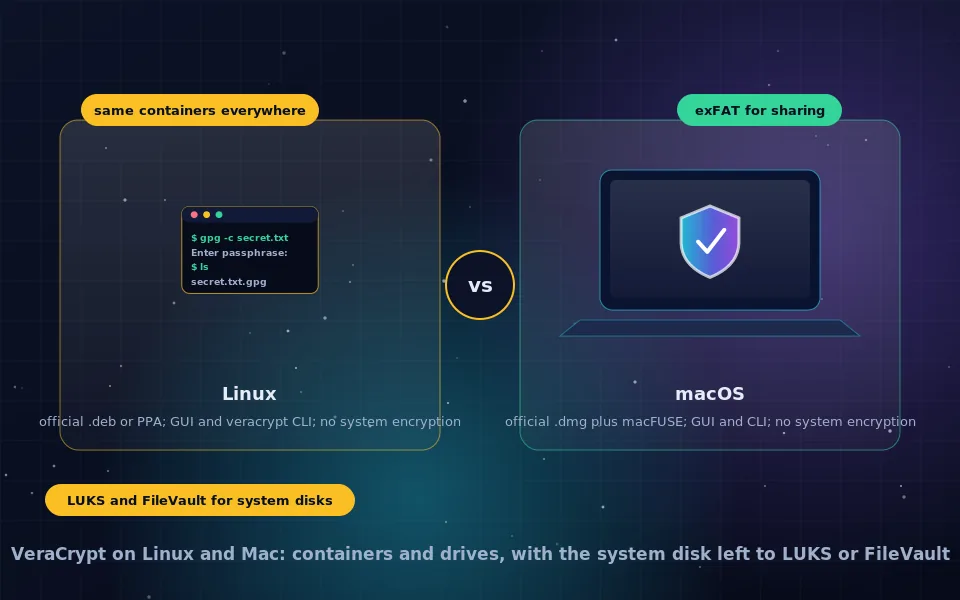
Mac, Windows and Linux. Windows and Linux cannot open APFS encrypted volumes. Encrypt the drive, or a container on it, with VeraCrypt, formatting the volume inside as exFAT, as the VeraCrypt USB and Linux and Mac guides on this site describe. Cryptomator vaults on an exFAT drive are another cross-platform option. Hardware-encrypted drives, compared in the encrypted USB drive guide, unlock without software on any system.
FileVault and iCloud: the other two layers
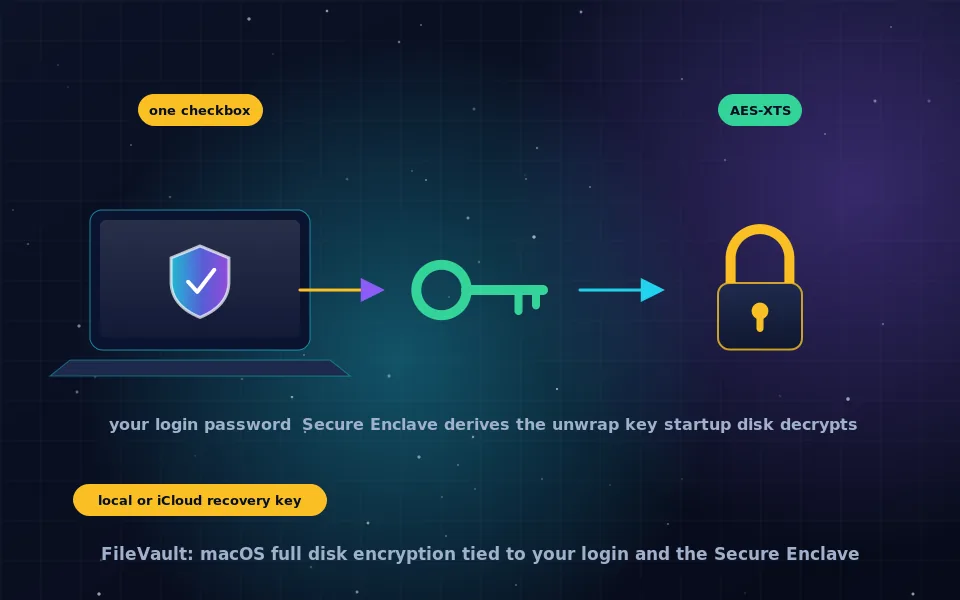
FileVault, covered in its own guide on this site, encrypts the startup disk so the Mac's contents are unreadable while it is off. It does not follow files onto USB drives, into email, or into iCloud. Encrypted disk images and archives do. For files in iCloud Drive, enabling Advanced Data Protection in your Apple account settings makes iCloud storage end to end encrypted so that Apple cannot read it; save the recovery key or set a recovery contact, since Apple can no longer help with a lost password. The encrypted cloud storage guide on this site puts this in context.
Time Machine backups of a Mac should be encrypted too, through the option offered when selecting the backup disk, or an unencrypted backup undoes everything above.
Choosing the method
| Goal | Method |
|---|---|
| A set of files you open regularly, Mac only | Encrypted sparse bundle disk image |
| Archive a folder to store or send | 7z with AES-256 via Keka |
| Send one file | age or gpg, or a 7z archive |
| A USB drive for Macs | APFS (Encrypted) in Disk Utility |
| A USB drive for all systems | VeraCrypt with exFAT |
| Files that sync to cloud | Cryptomator vault; Advanced Data Protection for iCloud |
| The whole Mac when off | FileVault |
A seven-point Mac checklist
- Remember that Finder's Compress does not encrypt.
- Use Disk Utility for encrypted images and drives, choosing 256-bit AES.
- Decide deliberately whether to save passwords in the keychain; saved passwords open with your login.
- For archives use Keka or another tool with AES-256 and encrypted names, never
zip -efor sensitive data. - Use VeraCrypt with exFAT for drives that leave the Mac ecosystem.
- Turn on FileVault and encrypt Time Machine backups.
- Store passwords in a password manager; none of these tools can recover them.
What Apple and macOS tool developers document
The steps above follow Apple's documentation and the tools' own.
Apple documents encrypted disk images in Disk Utility with 128-bit and 256-bit AES options and sparse bundle formats, APFS encrypted volumes for internal and external drives, the Finder Encrypt command for converting drives in place, and the keychain's role in storing volume passwords.
Apple's FileVault and Advanced Data Protection documentation describes startup disk encryption and end-to-end encryption of iCloud data respectively, with recovery key requirements for the latter.
Developers of Keka and comparable macOS archivers document AES-256 encryption with file name encryption in the 7z format, and security guidance notes the weakness of the legacy ZIP encryption produced by the command-line zip utility.
Disk Utility for containers, Keka for archives
Open Disk Utility and create your first encrypted sparse bundle, install Keka for archives that leave the Mac, and erase your USB drives as APFS encrypted or VeraCrypt exFAT depending on where they travel. With FileVault on underneath, every place your files live on a Mac is covered, and the remaining guides on this site cover them once they leave it.
Frequently asked questions
How do I encrypt a file or folder on a Mac?
Open Disk Utility, choose File, New Image, Image from Folder, select the folder, set Encryption to 256-bit AES, enter a password, and save. The resulting .dmg opens as a drive when you double-click it and enter the password. For an empty container you add files to later, use New Image, Blank Image with a sparse bundle format.
Can I password protect a zip file on Mac?
Not through Finder's Compress command. In Terminal, run zip -er archive.zip folder for legacy ZIP encryption, which is weak, or install a free tool such as Keka to create 7z or zip archives with AES-256 and encrypted file names. 7z with AES-256 is the secure choice for archives.
How do I encrypt a USB drive on a Mac?
In Disk Utility, erase the drive with the format APFS (Encrypted) or Mac OS Extended (Journaled, Encrypted) and set a password, or right-click a mounted drive in Finder and choose Encrypt. The drive then works on any Mac with the password. For a drive that must also open on Windows or Linux, use VeraCrypt with exFAT.
Does Mac encrypt files by default?
With FileVault on, the whole startup disk is encrypted at rest, so files on the Mac are protected while it is off or locked. Individual files are not encrypted when copied elsewhere or sent. For files that leave the Mac or sync to iCloud, use a disk image, an encrypted archive, or a per-file vault, and consider enabling iCloud Advanced Data Protection.
What is the difference between an encrypted disk image and FileVault?
FileVault encrypts the entire startup disk and unlocks with your login, protecting the Mac when it is off. An encrypted disk image is a portable container file that stays encrypted until you open it with its own password, protecting a specific set of files even while the Mac is unlocked, on a backup drive, or in the cloud.
Last reviewed and updated on . Plain text version: /encryption/encrypt-files-mac.txt.