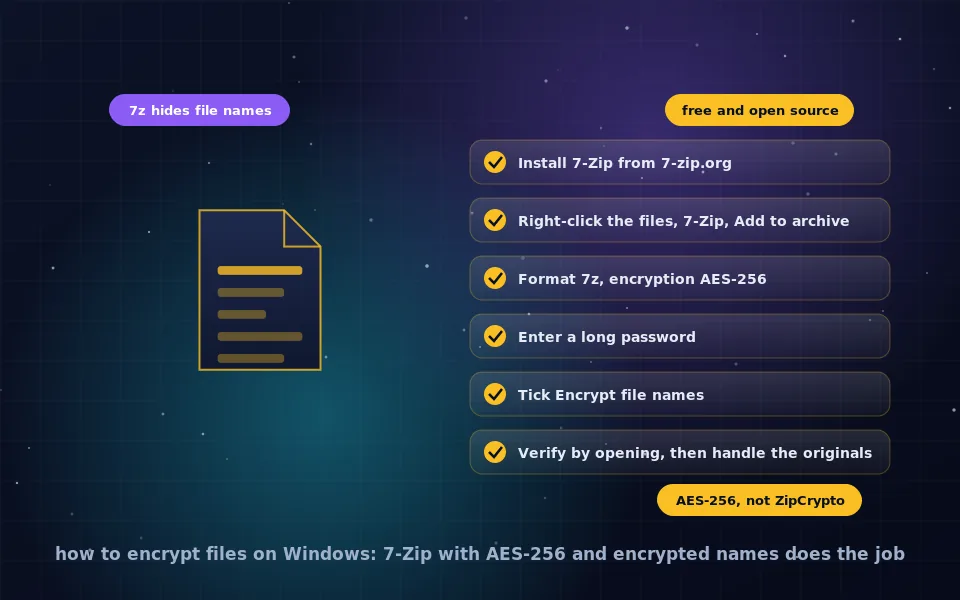
To encrypt files on Windows 10 or 11, install the free 7-Zip, right-click the files or folder, choose 7-Zip and Add to archive, set the format to 7z, enter a long password, confirm AES-256 as the encryption method, and tick Encrypt file names. The result is a single archive that cannot be opened or even listed without the password. Windows itself can zip but not password protect, its Encrypting File System protects files only within your Windows account, and BitLocker protects whole drives, so 7-Zip remains the standard answer for encrypting files you will store or send.
Windows users searching for how to encrypt a file usually want one of two things: an encrypted archive they can send or back up, or protection for files on their own PC. This guide covers both, starting with the 7-Zip procedure and the setting that most people miss, then encrypted RAR archives, the ZipCrypto trap, the built-in EFS and BitLocker features, and when VeraCrypt or a per-file vault is the better tool.
Encrypting files with 7-Zip: step by step
7-Zip is free, open source, and available from 7-zip.org. It has been the default file archiver for security-minded Windows users for two decades.
- Download and install 7-Zip from 7-zip.org, choosing the 64-bit installer for modern Windows.
- In File Explorer, select the file or files, or a folder, and right-click. On Windows 11, choose Show more options to see the 7-Zip menu, or use the 7-Zip entry if it appears directly. Choose Add to archive.
- Set Archive format to 7z. This matters for file name encryption and for the strongest defaults.
- Leave the compression level as you like; encryption is independent of compression.
- In the Encryption section, enter a password and re-enter it. Use a password manager to generate a long one, or a passphrase of several unrelated words. Show Password lets you check it.
- Confirm the Encryption method shows AES-256. For 7z it is the only option; for ZIP you must select it over ZipCrypto.
- Tick Encrypt file names. Without it, anyone can see the names and sizes of every file inside, which often reveals as much as the contents.
- Click OK. The archive is created alongside the originals.
- Verify by double-clicking the archive; 7-Zip should ask for the password before showing any contents.
- Deal with the originals: delete them if the archive is now the only copy that should exist, understanding that ordinary deletion is recoverable and that the reliable approach for sensitive material is to work inside an encrypted container or on an encrypted disk.
The 7z format uses AES-256 in CBC mode with a key derived from your password through a large number of SHA-256 iterations, which slows down guessing. The AES guides on this site explain what that provides.
Encrypting to ZIP instead of 7z
Sometimes the recipient can only open ZIP files. 7-Zip can create encrypted ZIPs: set the format to zip and change Encryption method from ZipCrypto to AES-256. Two limitations follow. Windows Explorer cannot open AES-encrypted ZIPs; the recipient needs 7-Zip, WinRAR or another capable program, and on macOS the built-in Archive Utility does not open them either. And ZIP cannot encrypt file names, so the list of files inside is visible to anyone. If the recipient can install 7-Zip, which runs on Windows and has ports for other systems, send 7z.
The ZipCrypto trap
Legacy ZIP password protection, called ZipCrypto or traditional PKWARE encryption, dates from the 1980s and is broken: known-plaintext attacks recover the contents without the password in practical time. Many tools still offer it as the default for ZIP archives because every ZIP program can open it. Never choose it for anything sensitive. In 7-Zip, it is the setting you change to AES-256; in WinRAR, choosing ZIP format with encryption also requires selecting AES. Any archive you receive that claims to be password protected but opens in plain Windows Explorer with a password prompt is using ZipCrypto.
Encrypting RAR files with WinRAR
WinRAR is a paid program with an evaluation period, widely installed on Windows. Its RAR5 format encrypts with AES-256 and can encrypt file names. To encrypt: add files to an archive, click Set password, enter and confirm the password, and tick Encrypt file names. The resulting .rar opens in WinRAR or in 7-Zip, which extracts RAR archives for free but cannot create them. There is no security reason to prefer RAR over 7z; both are AES-256 with encrypted names. The choice is about which program you and your recipients have.
The built-in options: EFS and BitLocker
Encrypting File System, EFS. On Windows Pro, Enterprise and Education, right-click a file or folder, Properties, Advanced, and tick Encrypt contents to secure data. EFS encrypts the file with a key tied to your Windows account, transparently, so you use the file normally and other users of the PC cannot read it. It does not produce a sendable encrypted file: copy an EFS file to a USB stick or attach it to an email and it is decrypted on the way out. Lose your Windows account or reinstall without backing up the EFS certificate and the files are unrecoverable. EFS suits protecting files from other accounts on a shared machine and little else.
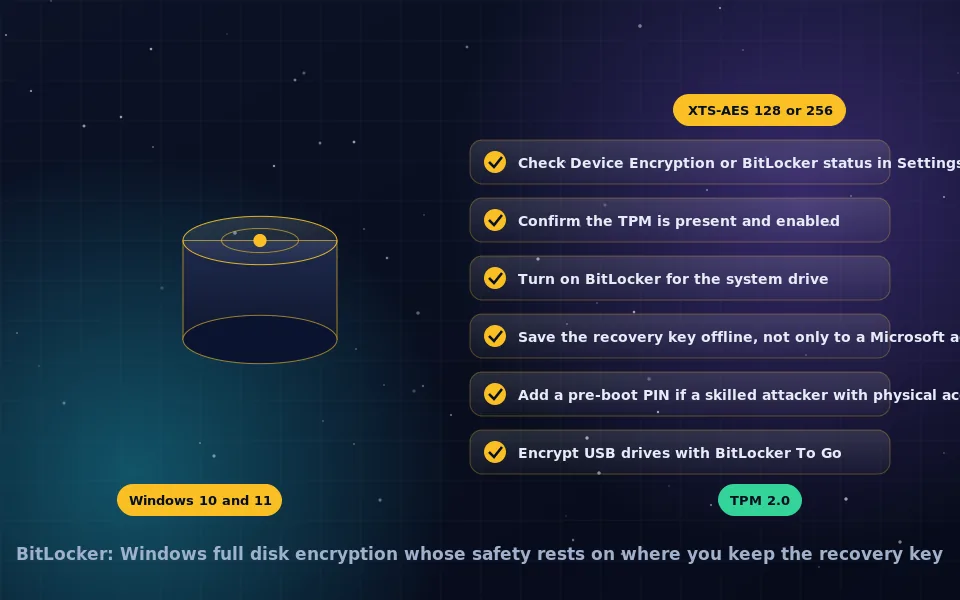
BitLocker and BitLocker To Go. BitLocker encrypts whole drives, covered in the BitLocker guide on this site. It protects everything on a lost or stolen PC and, through BitLocker To Go, on USB drives readable on other Windows machines. It does nothing for a file once it leaves the drive. Full disk encryption and file encryption are complementary, as the full disk encryption guide explains.
When to use VeraCrypt or a vault instead
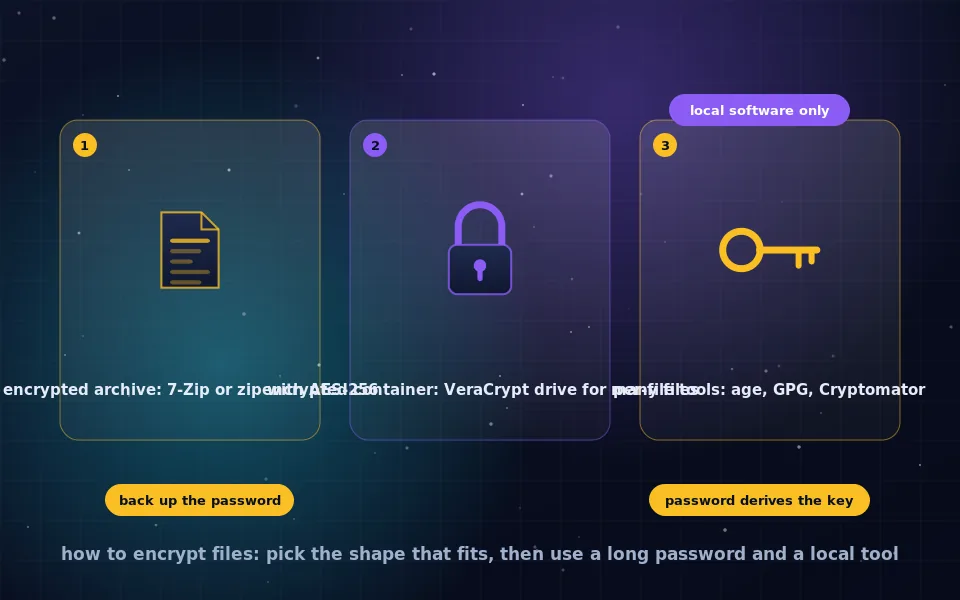
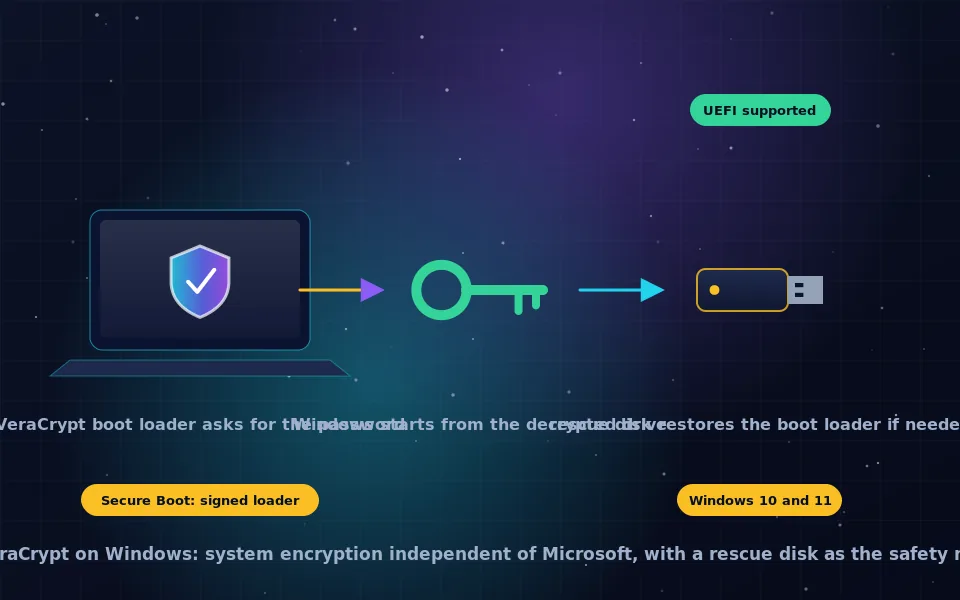
If you have many files you open and edit regularly, re-encrypting an archive after every change becomes tiresome. A VeraCrypt container, described in the VeraCrypt guides on this site, mounts as a drive letter where you work normally and dismounts to protect everything. If the files live in OneDrive, Dropbox or Google Drive, a per-file vault such as Cryptomator syncs cleanly where archives and containers do not, as the cloud encryption guide explains. Archives remain the right shape for sending and for long-term storage.
Sending an encrypted archive
Attach or upload the 7z file as you would any file; email providers and cloud services cannot read inside it. Send the password by a different channel: a phone call, a text message, a secure messenger, anything other than the same email. If the recipient has a PGP key, encrypting to it with Gpg4win, as the PGP tools guide on this site describes, avoids sharing a password at all. For PDF documents in particular, the PDF guide covers the document's own encryption.
A seven-point Windows checklist
- Install 7-Zip from 7-zip.org, not from a download portal.
- Use 7z format with AES-256 and Encrypt file names ticked.
- Never accept ZipCrypto.
- Generate the password in a password manager; 20 or more characters for anything important.
- Verify the archive opens with the password before deleting originals.
- Send passwords by a separate channel, or use PGP.
- For working sets use VeraCrypt; for cloud folders use Cryptomator; for the whole PC, BitLocker.
What 7-Zip, Microsoft and security researchers document
The steps above follow the tools' documentation and published analysis.
7-Zip's documentation describes AES-256 encryption for 7z and ZIP formats, iterated SHA-256 key derivation from the password, and the Encrypt file names option available in the 7z format.
Microsoft documents that the Encrypting File System protects files for the owning user account on NTFS volumes, that encrypted files are decrypted when copied to non-NTFS media or sent, and that BitLocker provides volume-level encryption rather than file-level protection.
Security researchers have published practical attacks against the legacy ZipCrypto scheme and recommend AES-based archive encryption, and independent reviews rate 7-Zip's AES-256 implementation as sound for protecting archived files when paired with a strong password.
Right-click, 7z, AES-256, encrypt names
That sequence, with a strong password, is how to encrypt files on Windows 10 and 11 for storage or sending. Add BitLocker for the drive itself and VeraCrypt for files you work on daily, and the Windows guides on this site will have each in place within an afternoon.
Frequently asked questions
How do I encrypt a file on Windows 11 with a password?
Install 7-Zip, right-click the file or folder, choose 7-Zip, then Add to archive. Set the format to 7z, enter a password, confirm the encryption method is AES-256, tick Encrypt file names, and click OK. The resulting .7z file cannot be opened without the password.
Does 7-Zip use AES-256 encryption?
Yes. 7-Zip encrypts 7z archives with AES-256 and derives the key from your password with many iterations of SHA-256. For ZIP archives it offers both AES-256 and the legacy ZipCrypto method; always select AES-256. The 7z format additionally encrypts file names, which ZIP cannot.
Can I zip and encrypt files with Windows built-in tools?
Windows can create ZIP files but cannot password protect them. The Encrypting File System, available in Pro editions through file Properties, Advanced, encrypts files for your Windows account only and does not protect files you copy elsewhere. For a sendable encrypted archive, you need 7-Zip or similar.
How do I encrypt RAR files?
In WinRAR, add files to an archive, click Set password, enter it, and tick Encrypt file names. WinRAR uses AES-256 for RAR5 archives. WinRAR is paid software with an evaluation period; 7-Zip is a free alternative with equivalent encryption, and 7-Zip can extract encrypted RAR files.
Is Windows ZIP encryption secure?
Legacy ZIP encryption, called ZipCrypto, is not secure and can be broken. ZIP archives encrypted with AES-256 in 7-Zip or WinRAR are secure, but not every program opens them, and ZIP cannot hide file names. For security, prefer the 7z format with AES-256 and encrypted file names.
Last reviewed and updated on . Plain text version: /encryption/encrypt-files-windows.txt.