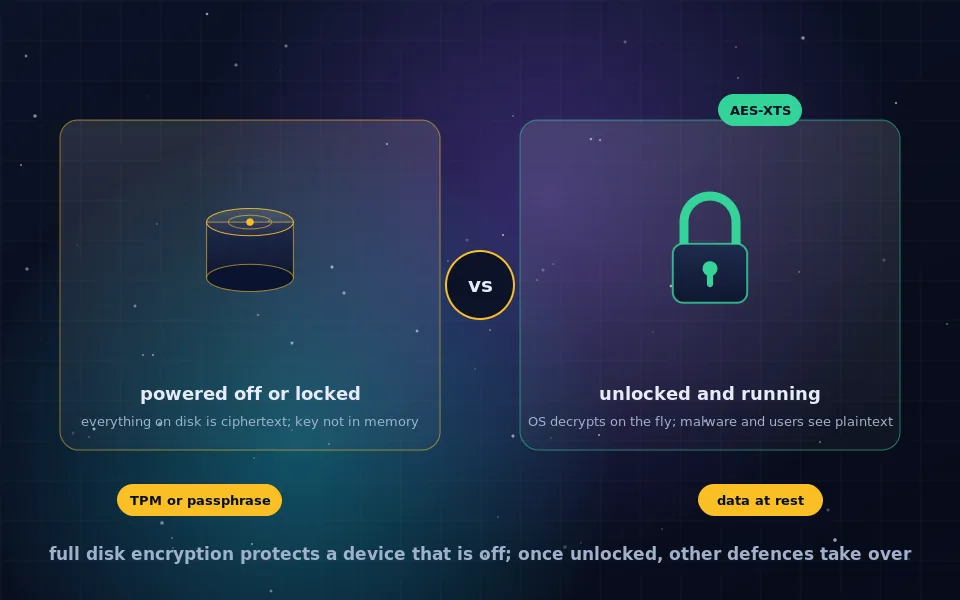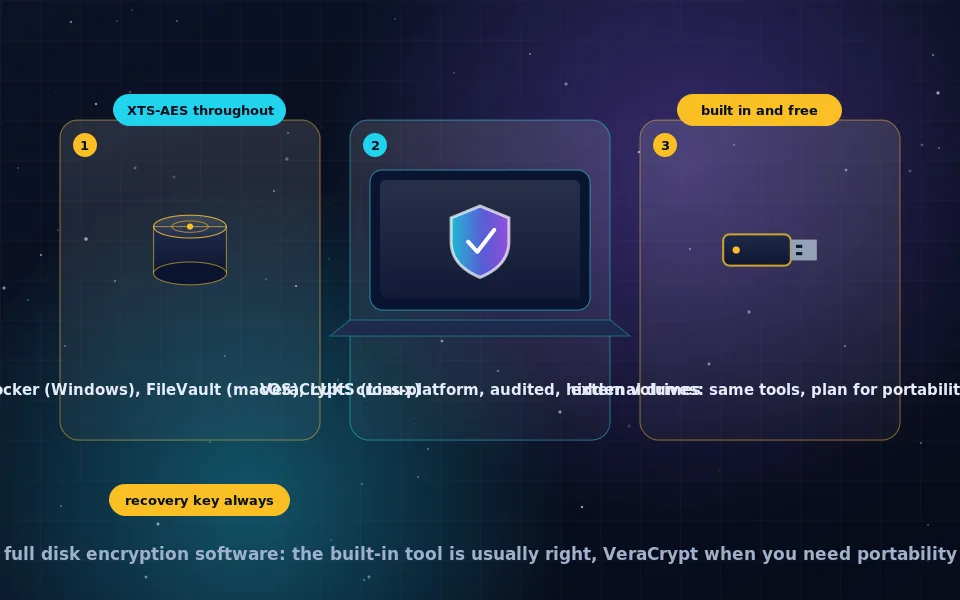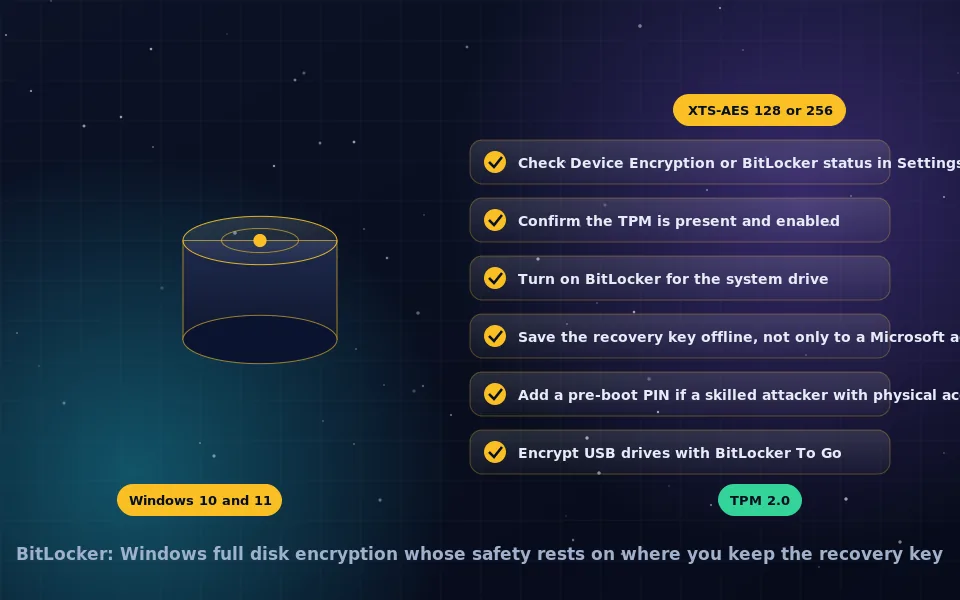
BitLocker Drive Encryption is the full disk encryption built into Windows. It encrypts entire volumes with AES in XTS mode using a random key that is normally sealed in the computer's TPM chip and released only when the system boots unmodified, so that a stolen drive or a laptop booted from other media yields nothing readable. It is included in Windows Pro, Enterprise and Education, and a simplified version called Device Encryption is on Windows Home for supported hardware, often enabled automatically. Turning it on takes minutes; deciding where the recovery key lives is the part to get right.
Most Windows PCs sold in recent years either have BitLocker running already or can enable it with one setting, which makes it the most widely deployed disk encryption in the world and also the one whose recovery keys most often end up somewhere the owner did not intend. This guide explains what BitLocker is and how it uses the TPM, the difference between Device Encryption and full BitLocker, how to enable it on Windows 10 and 11, how to handle recovery keys, when to add a PIN, and how BitLocker To Go protects USB drives.
What BitLocker is and how it works
BitLocker follows the full disk encryption model described in the guide on this site. A random full volume encryption key encrypts every sector of the drive with XTS-AES, 128-bit by default and 256-bit if you choose. That key is itself encrypted by a volume master key, which is protected by one or more key protectors. The protectors are what you interact with: the TPM, a PIN, a USB startup key, a password, and always a recovery key.
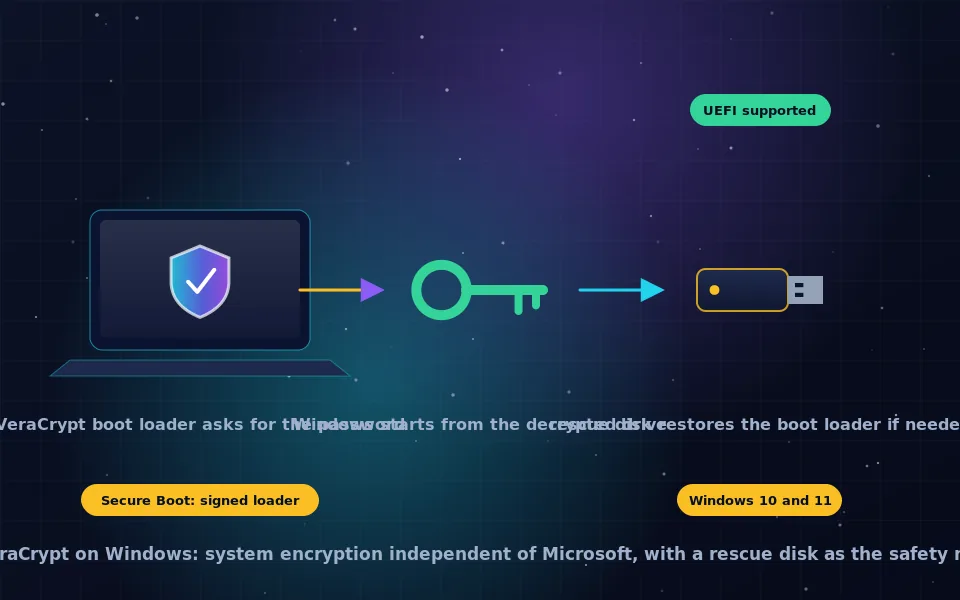
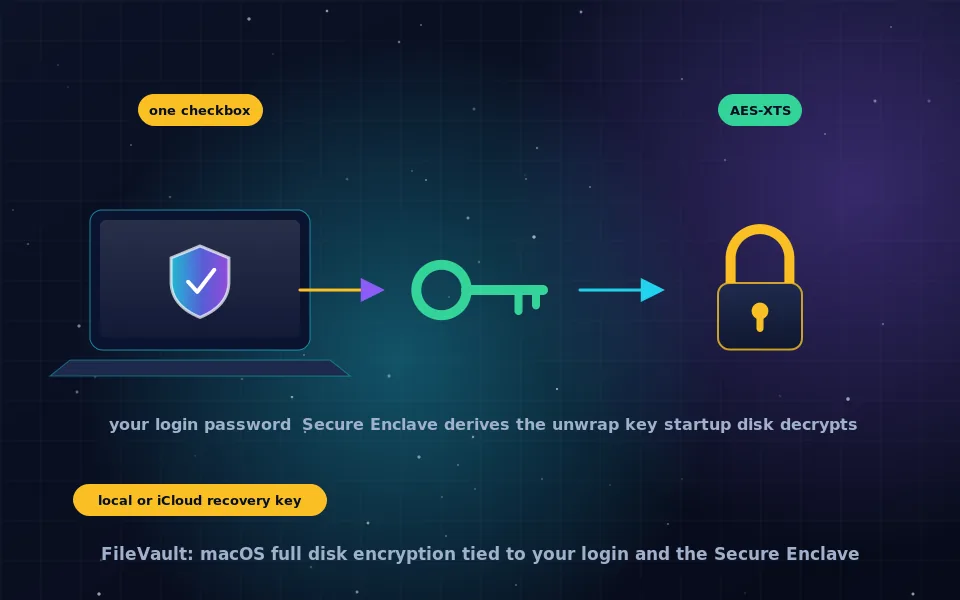
The TPM, Trusted Platform Module, is a security chip on the motherboard or built into the processor. During boot, the firmware and boot loader are measured and the results recorded in the TPM. BitLocker seals the key to those measurements, so the TPM releases it only if the boot sequence matches what it did when encryption was set up. Boot from a USB stick, swap the drive into another PC, or tamper with the boot loader and the TPM refuses, leaving the recovery key as the only way in. If the boot is normal, the TPM releases the key without asking you anything, Windows starts, and your login password is what protects the running system.
Device Encryption versus BitLocker
Windows Home includes Device Encryption, which is BitLocker with fewer options. It requires a TPM and modern standby support, encrypts the system drive automatically when you sign in with a Microsoft account, and saves the recovery key to that account. You cannot add a PIN, encrypt other drives, or choose cipher strength. Windows Pro, Enterprise and Education include the full BitLocker feature with those options, plus BitLocker To Go for removable drives and management through group policy.
If your Home edition PC shows Device encryption in Settings, it is protected, and you should confirm the recovery key is where you expect. If you need the full feature set, upgrading to Pro is the route Microsoft provides.
Turning on BitLocker on Windows 10 and 11
Windows Home with Device Encryption:
- Open Settings, then Privacy and security, then Device encryption.
- If the option appears, switch it on. If it does not appear, the hardware lacks a required feature, and the Windows edition guide below applies.
- Sign in with a Microsoft account if prompted; the recovery key is saved there. Retrieve and store it offline afterward as described below.
Windows Pro, Enterprise or Education:
- Search for Manage BitLocker and open it, or find BitLocker Drive Encryption in Control Panel.
- Next to the system drive, click Turn on BitLocker.
- Choose how to back up the recovery key: Microsoft account, a file on a different drive, or print. You can choose more than one.
- Choose whether to encrypt used space only, faster for a new PC, or the entire drive, recommended for a PC that has been in use, since it covers deleted-file remnants.
- Choose the encryption mode. New encryption mode, XTS-AES, is correct for fixed drives; compatible mode is for removable drives that older Windows versions must read.
- Run the BitLocker system check and restart. Encryption proceeds in the background and the PC remains usable.
To choose 256-bit encryption instead of the default 128-bit, set the cipher strength in Group Policy under BitLocker Drive Encryption before enabling it. Both are considered secure; the AES-256 guide on this site discusses the difference.
The recovery key decision
The recovery key is a 48-digit number that unlocks the drive when the TPM will not, which happens after firmware updates, hardware changes, boot from other media, or too many wrong PIN attempts. Without it in such a case, the data is gone. Where it is stored decides who else can read your disk.
- Microsoft account. Convenient and the default for Device Encryption. Microsoft holds a copy, can be compelled to produce it, and anyone who takes over your Microsoft account can retrieve it. For many people this trade is acceptable; for anyone whose threat model includes the provider or account compromise, it is not.
- File or printout stored offline. In a safe, a password manager, or with other important documents. Never on the encrypted drive itself, and not in an unencrypted cloud folder.
- Organisation directory. Managed PCs escrow keys to Active Directory or Entra ID, where administrators can retrieve them.
You can view and manage protectors, and delete a key from your Microsoft account after saving it elsewhere, through the account's devices page. Whatever you choose, test that you can find the key before you need it.
Adding a pre-boot PIN
A TPM-only setup unlocks the disk automatically at boot, which means the security of your data at rest is the security of your Windows login plus the TPM's resistance to attack. Researchers have demonstrated attacks that extract the key from the TPM communication or from memory on some TPM-only systems. A pre-boot PIN or password, entered before Windows loads, means the TPM will not release the key without it, closing those attacks. Enable it through Group Policy by requiring additional authentication at startup, then add the PIN protector through Manage BitLocker or the manage-bde command. It costs a few seconds at every boot and is worth it on a laptop that travels.
BitLocker To Go for USB and external drives
BitLocker To Go encrypts removable drives with a password, and optionally a smart card, without a TPM. In File Explorer, right-click the drive, choose Turn on BitLocker, set a password, save the recovery key, and pick compatible mode if older Windows versions must read the drive. The drive prompts for the password when connected to any Windows PC. macOS and Linux cannot read BitLocker To Go natively; third-party tools exist, but for drives that must move between operating systems, VeraCrypt is the better choice, as the VeraCrypt USB guide on this site explains. The encrypted USB drive guide compares this with hardware-encrypted sticks.
A six-point checklist
- Confirm encryption is active: Manage BitLocker or the Device encryption page shows the system drive as on.
- Retrieve the recovery key and store a copy offline, then decide whether to leave the Microsoft account copy in place.
- Add a pre-boot PIN on laptops if physical attack is a concern.
- Encrypt secondary internal drives and any external drives that hold personal data.
- Shut down or hibernate rather than sleep when the laptop leaves your control, since sleep keeps the key in memory.
- Check for firmware updates through your PC maker, since the TPM measurement chain depends on the firmware being current.
What Microsoft and security researchers say
The description above follows Microsoft's documentation and published research on BitLocker.
Microsoft documents BitLocker's use of XTS-AES, the TPM-sealed key release, the protector model including recovery keys, the automatic Device Encryption on capable Home edition PCs with recovery keys saved to the Microsoft account, and the option to require a pre-boot PIN.
Security researchers have published attacks against TPM-only BitLocker configurations, including intercepting the key on the bus between the TPM and processor on some hardware, and recommend a pre-boot PIN for systems exposed to physical attack.
Digital-rights organisations have noted that recovery keys escrowed to cloud accounts are accessible to the provider and to legal process, and advise users who want sole control of their keys to store the recovery key offline and remove it from the account.
Encrypted is the default; sole control is a choice
Your Windows PC is probably encrypted already. Spend ten minutes confirming it, finding the recovery key, moving a copy offline, and deciding whether Microsoft should keep one. Add a PIN if your laptop travels, encrypt the USB sticks you carry, and BitLocker will do what full disk encryption is for: make a lost or stolen machine a loss of hardware and nothing more.
Frequently asked questions
What is BitLocker encryption?
BitLocker Drive Encryption is Microsoft's full disk encryption for Windows. It encrypts entire volumes with AES so that the data cannot be read without a key, which is normally stored in the computer's TPM chip and released only when the system boots unmodified. It is included in Windows Pro, Enterprise and Education, with a simpler Device Encryption on Home.
How do I turn on full disk encryption in Windows 10 or 11?
On Home edition, open Settings, Privacy and security, Device encryption, and turn it on. On Pro and above, search for Manage BitLocker in Control Panel, select the system drive, and click Turn on BitLocker. Choose how to save the recovery key, and let it encrypt in the background.
Is BitLocker secure?
Yes, when configured correctly. The encryption is AES in XTS mode and the design has been studied extensively. Its practical weaknesses are the automatic unlock on TPM-only setups, which relies on the Windows login being strong, recovery keys stored in Microsoft accounts, and the fact that it is closed source. Adding a pre-boot PIN addresses the first.
Where is my BitLocker recovery key?
Wherever you chose when enabling it: your Microsoft account at the account recovery keys page, a file you saved, a printout, or your organisation's Active Directory or Entra ID if the PC is managed. If Device Encryption turned on automatically, the key was saved to the Microsoft account you signed in with.
Can I use BitLocker on a USB drive?
Yes. BitLocker To Go encrypts removable drives with a password or smart card. Right-click the drive in File Explorer and choose Turn on BitLocker. The drive opens on any Windows machine with the password and can be read on older Windows versions with a reader utility; macOS and Linux need third-party software.
Last reviewed and updated on . Plain text version: /encryption/bitlocker.txt.