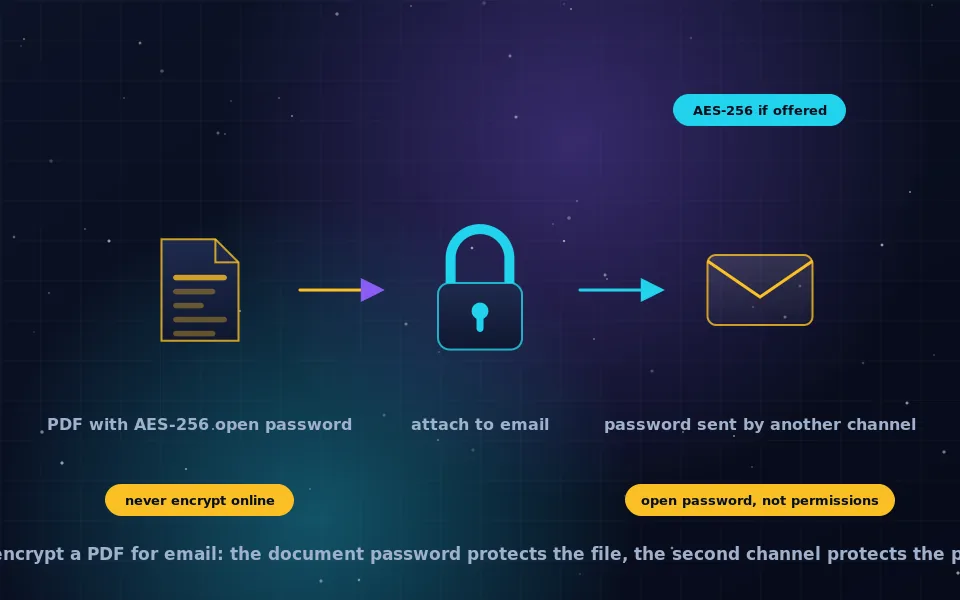
To encrypt a PDF for email, add an open password to the document with modern AES-256 encryption using local software, then attach it and send the password by a different channel such as a text message or phone call. On a Mac, Preview's Export dialog does this; on Windows, LibreOffice, PDF24 or Adobe Acrobat do, since Microsoft Print to PDF cannot; on Linux, qpdf or LibreOffice. The same approach works for any file: encrypt it locally with 7-Zip, Keka, age or GPG and attach the result. Online encryption websites should never be used, because they receive the unencrypted document.
Sending a document by email is the most common moment people want encryption and the moment they most often reach for the wrong tool. This guide explains which PDF security settings actually protect a document, how to apply them on each platform, how to send any file encrypted by email, how to deliver the password, and why online tools and provider features are not substitutes.
What PDF encryption does and which settings matter
The PDF format supports encryption of the whole document with a key derived from a password. Two passwords exist and they are not equal.
The open password, also called the user password, is required to open the document at all. With modern encryption, this is real protection: the contents are encrypted and cannot be read without it.
The permissions password, also called the owner password, restricts printing, copying or editing while allowing anyone to open and read. If no open password is set, the document is encrypted with a key any reader can derive, and the restrictions are enforced only by the goodwill of the PDF viewer. Free tools remove them instantly. Permissions without an open password protect nothing.
The encryption level matters as well. PDF has supported 40-bit RC4, 128-bit RC4, 128-bit AES and 256-bit AES over the years. RC4 is broken, as the legacy ciphers guide on this site explains. Choose AES-256, which corresponds to PDF 1.7 extension level or PDF 2.0, when the tool offers a choice; AES-128 is acceptable. Tools that only produce RC4 encryption should not be used for sensitive documents.
Encrypting a PDF on a Mac
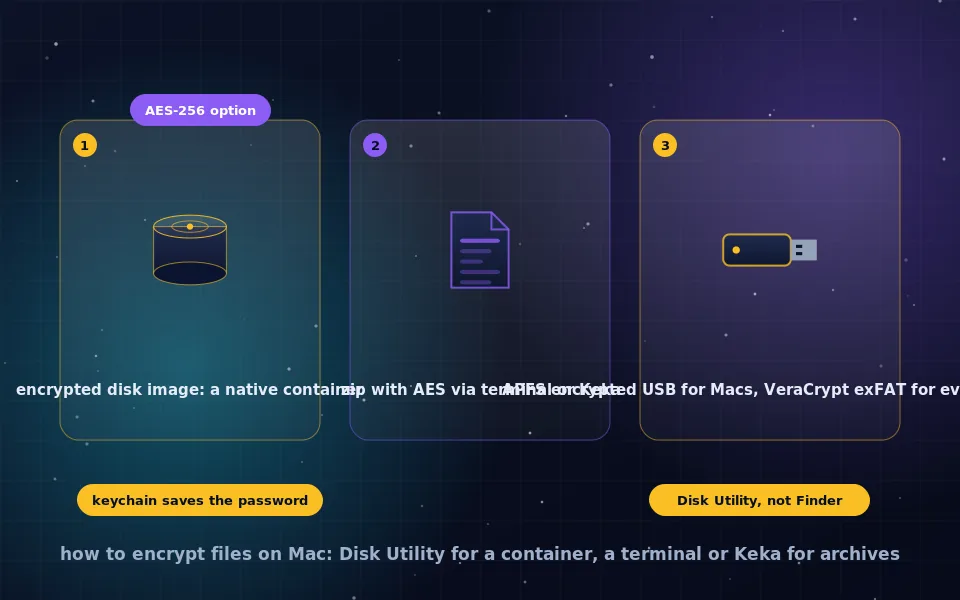
- Open the PDF in Preview.
- Choose File, Export.
- Tick Encrypt, enter a password and verify it.
- Save under a new name.
Preview uses AES encryption. To set a permissions password separately, choose File, Export as PDF, click Show Details, and use the Permissions button, remembering that permissions alone are not protection. Pages, Numbers and Keynote also export encrypted PDFs through their export dialogs.
Encrypting a PDF on Windows
Windows has no built-in PDF encryption; Microsoft Print to PDF and Edge's print dialog produce unencrypted files. Options that work:
- LibreOffice, free and open source. Open or create the document, choose File, Export As, Export as PDF, open the Security tab, click Set Passwords, set an open password, and export. LibreOffice uses AES-256.
- PDF24 Creator or similar free desktop tools include a protect function; install the desktop version and confirm it processes files locally, since some tools have online components.
- Adobe Acrobat, if you have it, provides Protect Using Password with AES-256 on current versions.
- Microsoft Word can save as PDF but its PDF export does not encrypt; encrypt the Word document instead, or export and then protect with one of the above.
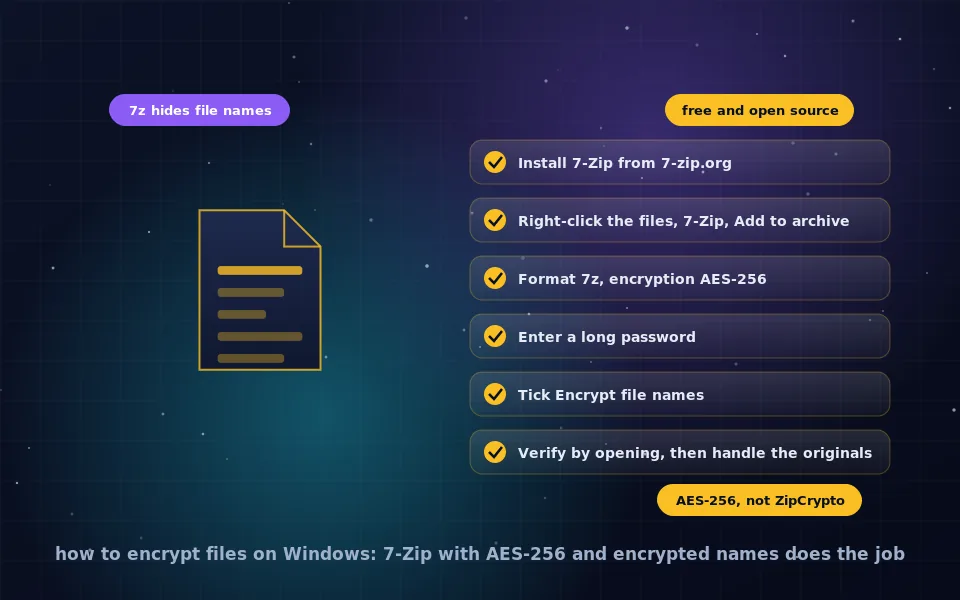
- 7-Zip as a general alternative: place the PDF in an AES-256 7z archive with encrypted file names, as the Windows guide on this site describes. The recipient needs 7-Zip or a compatible tool.
Encrypting a PDF on Linux
- qpdf from the command line:
qpdf --encrypt OPENPASSWORD OWNERPASSWORD 256 -- input.pdf output.pdfproduces AES-256 encryption. Use a strong owner password too, or the same as the open password. - LibreOffice works exactly as on Windows.
- PDF Arranger, Okular and other desktop PDF tools offer password protection in their save or export dialogs; check which encryption level they use.
Sending any encrypted file by email
PDF encryption protects PDFs. For anything else, or when the recipient cannot handle an encrypted PDF, encrypt the file itself:
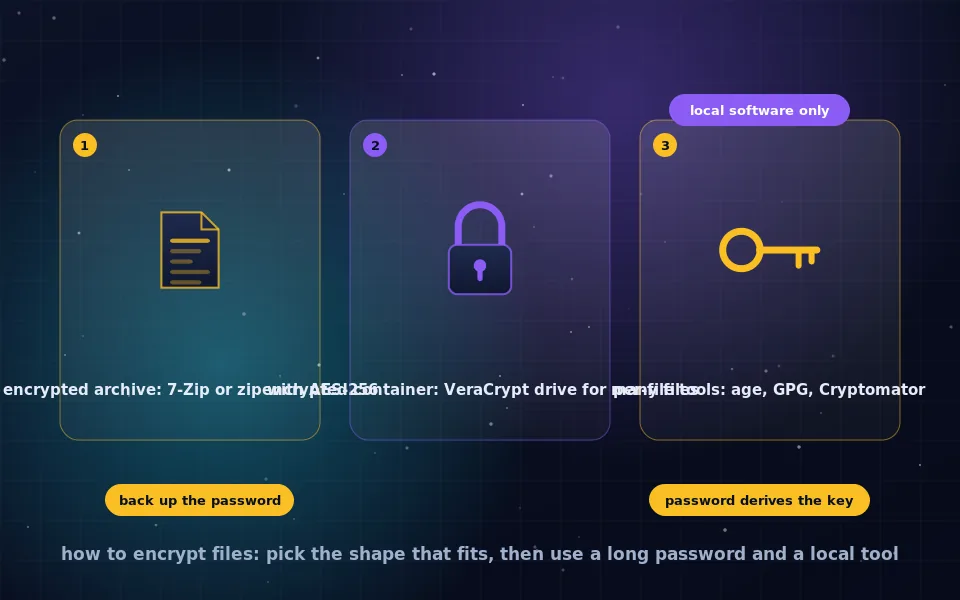
- Create an AES-256 archive with encrypted file names: 7-Zip on Windows, Keka on macOS,
7z a -p -mhe=onon Linux, as the platform guides on this site describe. Or encrypt with age or GPG. - Attach the encrypted file. Mail providers cannot read inside it, and their scanners will not object to archives in most cases, though some block executable contents regardless.
- Send the password separately, as described next.
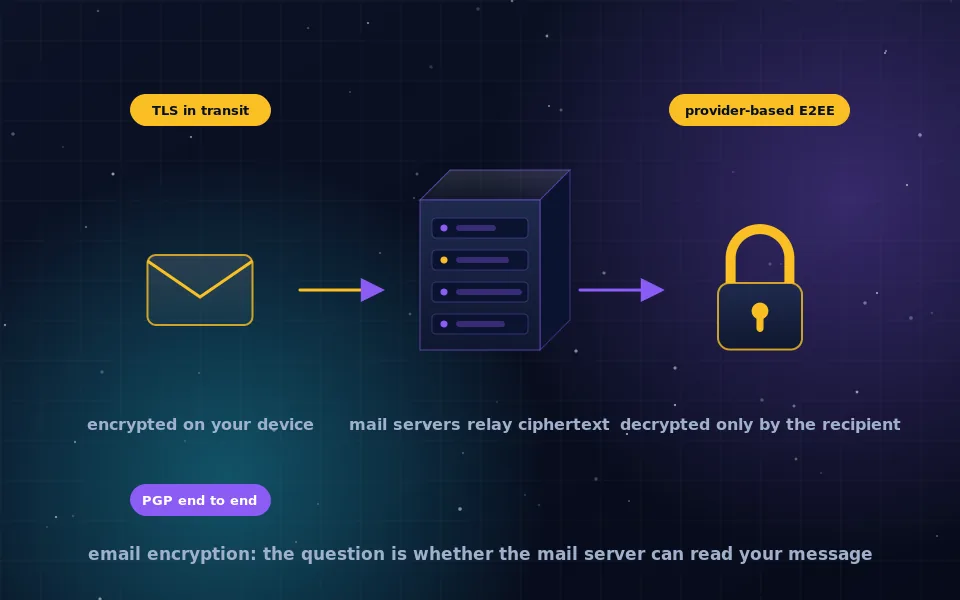
If you and the recipient both use PGP, encrypt the attachment or the entire message to their key and no password is needed, which is the better method for anyone you correspond with regularly; the PGP guides on this site explain setup. Providers with end-to-end encryption between their users, described in the email encryption guide, also encrypt attachments automatically.
Delivering the password
The password must not travel with the file. Sending both in the same email, or the password in a follow-up email to the same address, gives anyone reading that mailbox both pieces. Good channels are a phone call, a text message to a number you already have, a secure messenger, or a password agreed in person in advance. For recurring exchanges with the same person, agree on one strong shared password once, out of band, and reuse it for that correspondent only. Never put the password in the file name or the email subject.
Why online encryption tools are unsafe
Search for PDF encryption and the first results offer to do it in the browser: upload, set a password, download. Whatever such a site promises, it has received your unencrypted document and your chosen password on its servers. You cannot verify what it stores, who can access it, or whether it is honest. Every platform can encrypt a PDF locally with free software, so the online route trades your document's confidentiality for a saving of two minutes. The same applies to online tools that remove PDF passwords, merge or convert documents: anything sensitive should never be uploaded to them.
Provider features are not file encryption
Gmail's confidential mode, Outlook's message encryption and similar features control access to a message through the provider: they can expire messages, block forwarding or require a code. The provider still holds the content and can read it, the recipient may receive a link rather than the file, and the protection does not follow a downloaded file. They are useful for reducing accidental forwarding, not for keeping the provider out. The email encryption guide on this site examines what each mainstream provider actually encrypts.
A seven-point checklist
- Set an open password, not just permissions.
- Choose AES-256 where the tool offers it; never RC4.
- Encrypt locally with Preview, LibreOffice, qpdf, Acrobat or an archive tool; never online.
- Use a long password from a password manager, or a strong passphrase.
- Send the password by a different channel than the file.
- Prefer PGP or an end-to-end encrypted provider for recurring correspondents.
- Verify the recipient can open the file before assuming the exchange succeeded.
What the PDF specification and security reviewers say
The guidance above follows the format's documentation and independent assessment.
The PDF specification documents the distinction between the user password, which is required to open the document and protects its encrypted contents, and the owner password, which sets permissions that viewers enforce, and specifies AES-256 as the current encryption method with earlier RC4 methods retained for compatibility.
Security researchers have demonstrated attacks on legacy PDF encryption and have shown that permission restrictions without an open password can be removed by freely available tools, and recommend AES-256 with a strong open password for confidential documents.
Privacy advocates advise against uploading sensitive documents to online conversion or protection services, noting that users cannot verify the handling of uploaded files, and recommend local tools available free on every platform.
Encrypt locally, send the password elsewhere
Open the document in Preview or LibreOffice, set an open password with AES-256, attach the result, and text the password. That routine, applied to every document that matters, protects it in transit, at rest in both mailboxes, and in every backup either provider keeps. For the correspondents you write to often, the PGP guides on this site remove even the password step.
Frequently asked questions
How do I password protect a PDF for email?
On a Mac, open the PDF in Preview, choose File, Export, tick Encrypt and set a password. On Windows, print to Microsoft Print to PDF does not encrypt, so use LibreOffice's export with a password, PDF24, or Adobe Acrobat's Protect tool. On Linux, use qpdf or LibreOffice. Set an open password with AES-256 where offered, then attach the file.
How secure is PDF password protection?
Modern PDF encryption with AES-256 and a strong open password is secure. Older PDF encryption with 40-bit or 128-bit RC4 is weak, and a permissions password that restricts printing or copying without an open password is trivially removed. The open password and a modern encryption level are what matter.
How do I send an encrypted file via email?
Encrypt the file locally, with the document's own encryption for a PDF or an AES-256 archive from 7-Zip or Keka for anything else, attach it, and send the password through a different channel such as a text message or phone call. Alternatively, use PGP or a provider with end-to-end encryption so the whole message is protected.
Is it safe to encrypt PDF files online?
No. Uploading a document to a website that adds a password gives that site the unencrypted document and the password. Every major operating system can encrypt a PDF locally with built-in or free software, so there is no need to send a document to a third party to protect it.
Can Gmail or Outlook encrypt attachments?
Gmail's confidential mode and Outlook's encryption features control access through the provider rather than encrypting the file itself; the provider can still read it and the protection does not follow the file. For a file that stays encrypted wherever it goes, encrypt it before attaching.
Last reviewed and updated on . Plain text version: /encryption/encrypt-pdf-for-email.txt.